
Home is the first row in the left-hand menu and the page Brigg opens on. It belongs to you: what it shows is your own tasks and your own meetings, gathered from every part of the workspace.
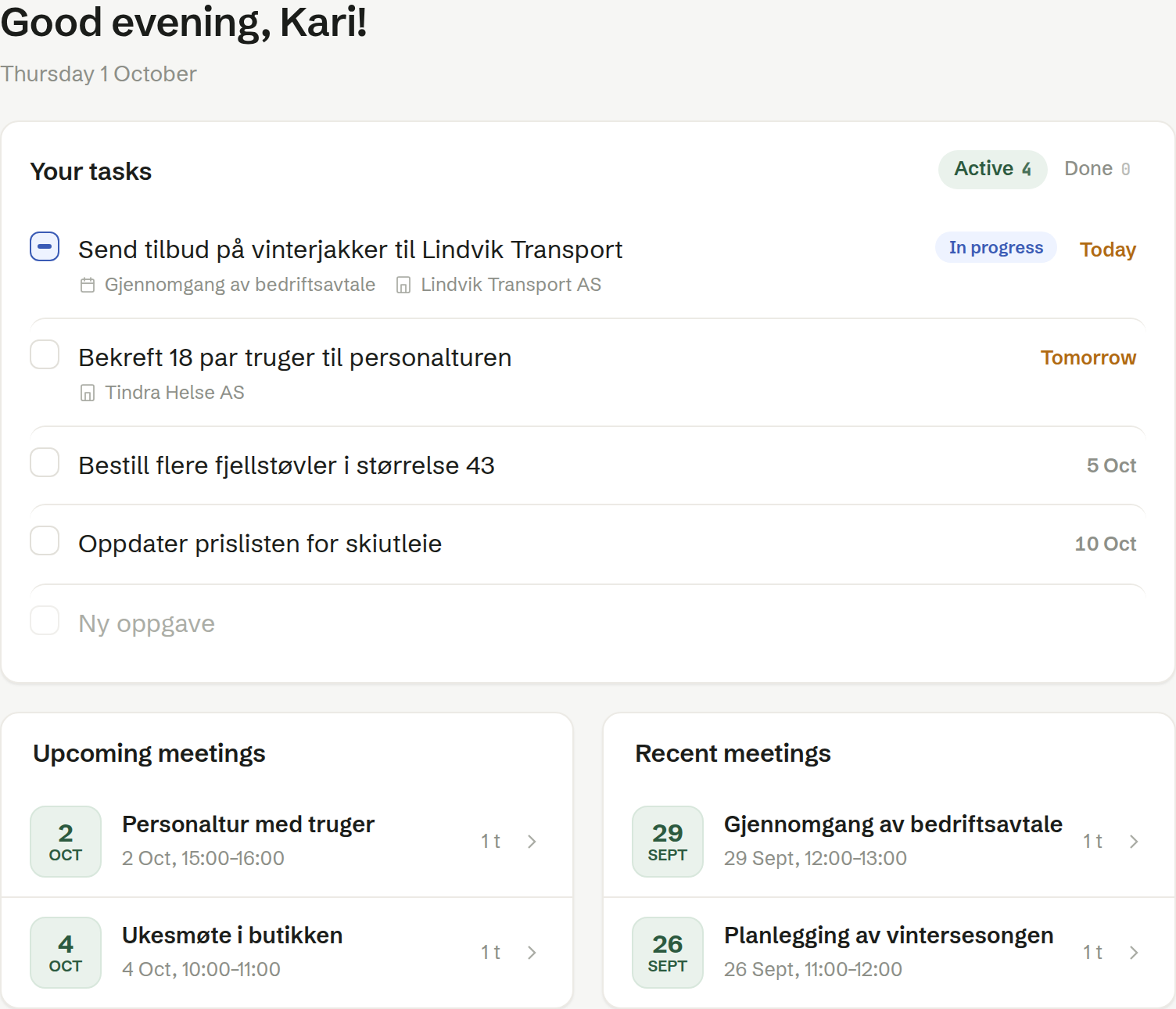
The greeting
At the top, Brigg greets you by your first name — «Good morning», «Good afternoon» or «Good evening» depending on the time of day — with today's date underneath.
Your tasks
Your tasks lists every task that is yours: the ones assigned to you, wherever they were made, and the private tasks you have written for yourself. A task that came out of a meeting or belongs to a customer shows a link to that meeting or customer under its title; click it to go there.
The list has two tabs, each with a count:
- Active — tasks not yet done. This is where you start.
- Done — tasks you have ticked off.
What you can do with a task:
- Tick it off with the box in front of it. The box has three states: not started, in progress (a line) and done (a tick).
- Change the title by clicking it and typing.
- Hover over a task to see its tools: Start marks it as in progress, + due sets a due date in a small calendar, and the bin deletes it.
- Some tasks — usually follow-ups from a meeting — also show the agent's mark (Ask the agent to do this). It opens Agent suggestions: things the agent offers to do for you, such as drafting the email. Choose one, and the request goes to the agent in the chat.
To add a task, type in the New task row at the bottom of the list and press Enter. A task you add here is private to you.
The list shows the latest eight tasks. When there are more, Show all above the list opens the whole list.
Upcoming and recent meetings
Below your tasks, two boxes show your meetings:
- Upcoming meetings — the next four meetings in your calendar.
- Recent meetings — the last four meetings that have taken place.
Each meeting shows its date, time and length. Click one to open it in Meetings.
If your calendar is not connected, the Upcoming meetings box says so and offers Connect calendar.
See Meetings.
The agent next to Home
The chat with your agent sits beside Home as on every other page. Ask it what is on your plate today, or to turn a meeting into tasks — see The Brigg agent.