
You can belong to more than one organisation — for example your own company and a client's. Each organisation is its own workspace with its own data.
Switching
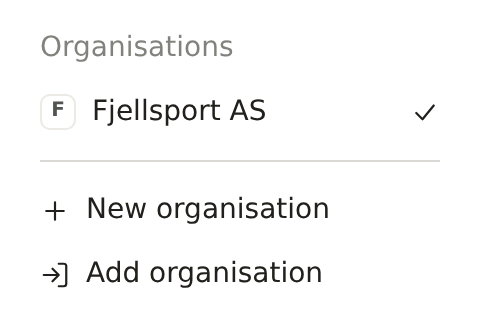
Click the organisation's name at the top of the left-hand menu. Under Organisations you see all of yours; the one you are in is marked as active. Pick another to switch — Brigg reloads in that workspace.
You cannot switch while a meeting is being transcribed or while you have unsaved changes; finish first.
New organisation
Choose New organisation to create a workspace for another company:
- Search for the company by name.
- Enter your email address at that company and press Send code.
- Enter the confirmation code from the email and press Create organisation.
The address you confirmed is added to your account. If the company already has a workspace, you are offered to ask for access instead.
Add organisation
Use Add organisation for a workspace where you use a different email address. Brigg sends a sign-in link to that address; after you open it, both accounts stay signed in and both organisations are listed here. Nothing is merged between them.
Settings for the organisation
Owners and administrators see a gear next to the organisation name, which opens Company settings.