
Where it lives
On a computer, the agent is the column on the right of every screen. On a phone it opens as a panel from the right; the top shows what it is looking at, and Close puts it away. The conversation follows you around Brigg — when you move to another screen, a divider shows that the agent is now looking at something new.
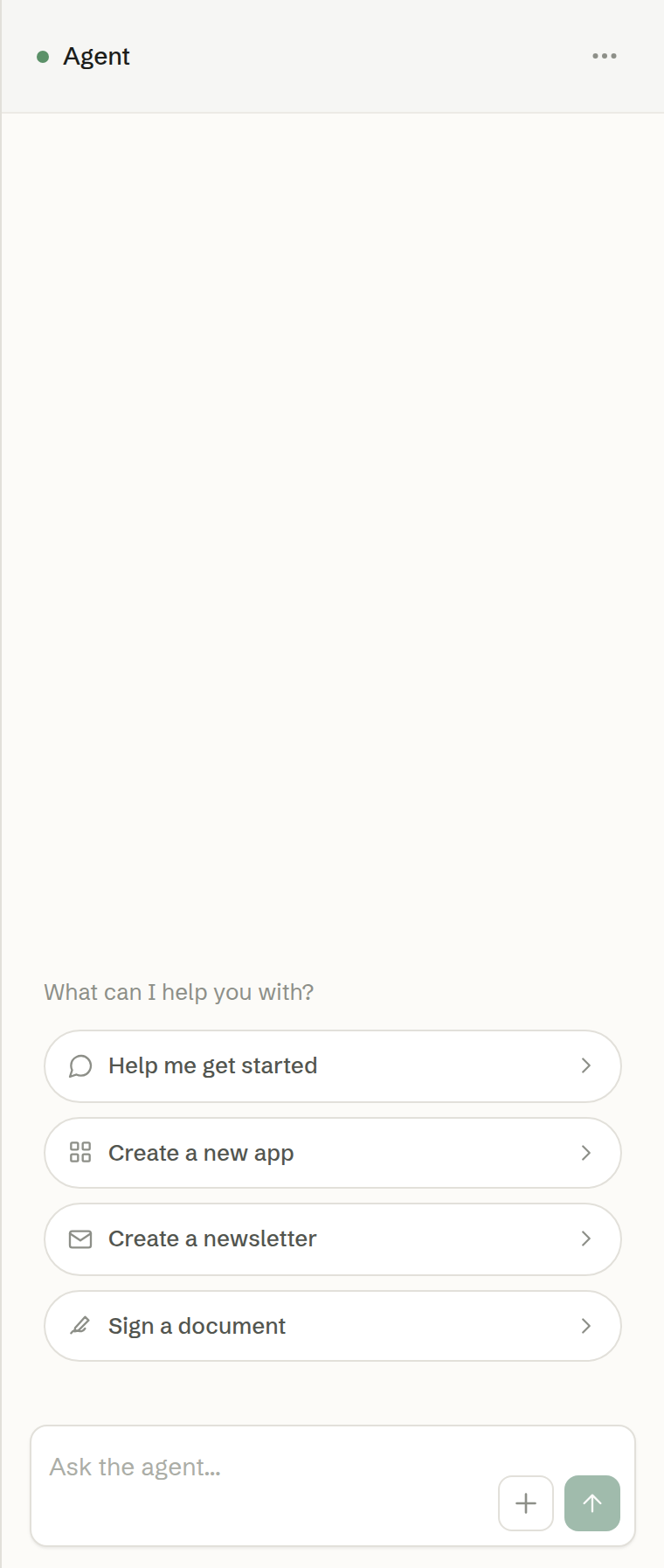
Writing to it
Type in the box at the bottom (Ask the agent…) and press Enter to send. Shift+Enter makes a new line.
You can keep writing while the agent is working: your message is queued and sent when it is ready. A new conversation starts with a few suggestions, such as Help me get started.
While it works, a line tells you what it is doing — for example searching the web or building an app.
When the agent mentions a meeting, a customer, a file or an app, it links to it. Click the link to open it in Brigg.
Attaching files
Click the paperclip (Attach file), drag files onto the chat, or paste — for example a screenshot. You can send files with or without a message. The agent can read documents, spreadsheets and images.
Stopping
Press Stop to stop the answer in progress and empty the queue.
When the agent has asked you a question, it is not working — it is waiting. The chat then says Waiting for your answer, and there is nothing to stop. If you write a new message instead of answering the card, the question is set aside and the card is marked Cancelled. The same happens to an open question when you press Stop.
If something goes wrong along the way, the chat says Something went wrong — please ask again where the answer would have been.
Cards
Some answers come as cards you act on:
- Questions with options to choose from, and a field for your own answer.
- Permission cards when the agent wants to do something in your name — see Permissions.
- Email drafts you can open and send yourself, or have sent as you.
- Task cards for longer work, such as building an app, that runs while you carry on.
- Phone call cards with the live transcript of a call the agent is making for you.
Starting a new session
Long conversations can be put away. Open the ⋯ menu at the top of the chat and choose New session, then Start new session. The conversation is archived, not deleted, and your next message starts fresh. You cannot start a new session while the agent is working.