
An app is changed by asking for it. Open the app and tell the agent in the chat what you want, in your own words:
- «Add a field for warranty expiry.»
- «Show only my cases on the front page.»
- «Sort the list by quantity, lowest first.»
The agent makes the change in the app while you watch. Small changes happen right away; a larger one runs as a task with its own card in the chat, like the first build.
The toolbar
A saved app shows only a pencil, Edit, in its top right corner (bottom right on a phone). Press it to open the app's toolbar. The arrow at the far left, Hide toolbar, folds it away again.
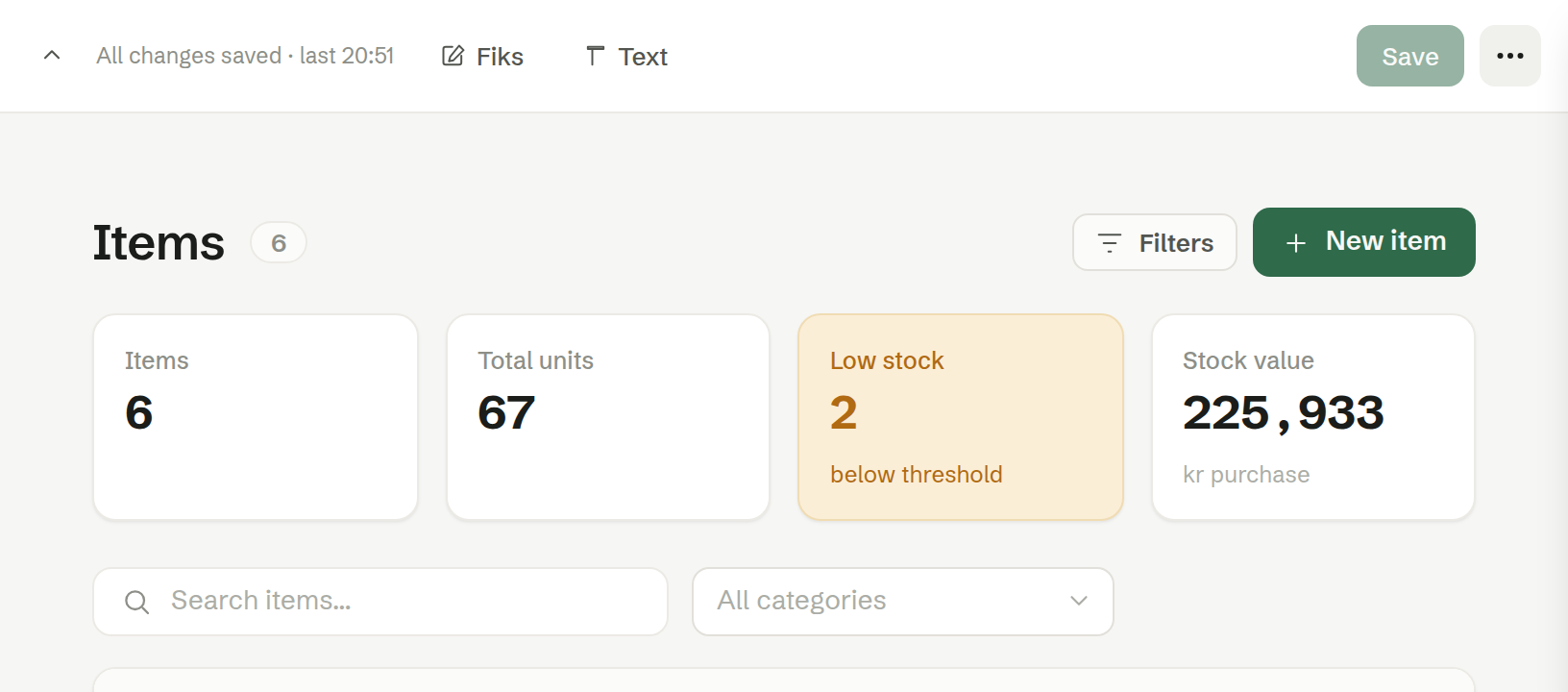
From left to right:
- The status line — All changes saved · last 14:02 when there is nothing unsaved.
- Fiks — point at what you want changed. Click an element in the app, type a note such as «make this green» and press Enter. The note goes to the agent in the chat, with the element it is about.
- Text — change the app's words directly on the screen. See Editing text and languages.
- Save — greyed out until there is something to save. Discard joins it when there is a draft (below).
- … (More options) — Settings and Delete the app.
Your draft
Every change the agent makes lands in a draft that only you see. Your colleagues keep using the saved version until you save.
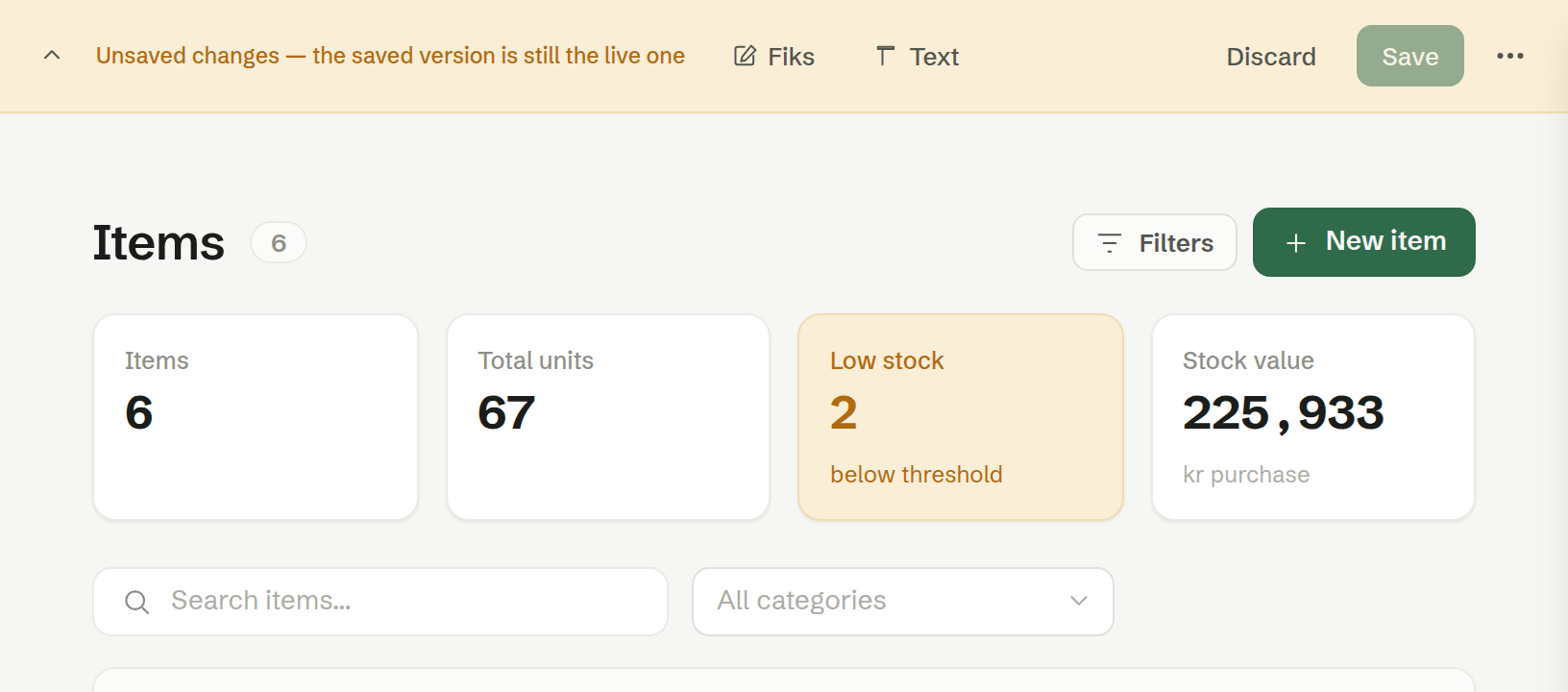
While there is a draft, the toolbar turns amber and says what is at stake:
- Unsaved changes — the saved version is still the live one — the app has been saved before, and your colleagues still see that version.
- Not saved yet — no one else can see it — a new app that has never been saved.
- The draft failed validation — discard it, or ask the agent to fix it — the draft has errors that stop it from being saved. Save stays greyed out until they are fixed: ask the agent to fix them, or press Discard.
Then:
- Save makes the draft the version everyone uses. While the agent is still working on the app, Save waits until it is done.
- Discard throws the draft away and takes you back to the saved version, after asking Discard changes?. On an app that has never been saved, discarding deletes the app, and Brigg asks you to confirm that instead.
The More options menu
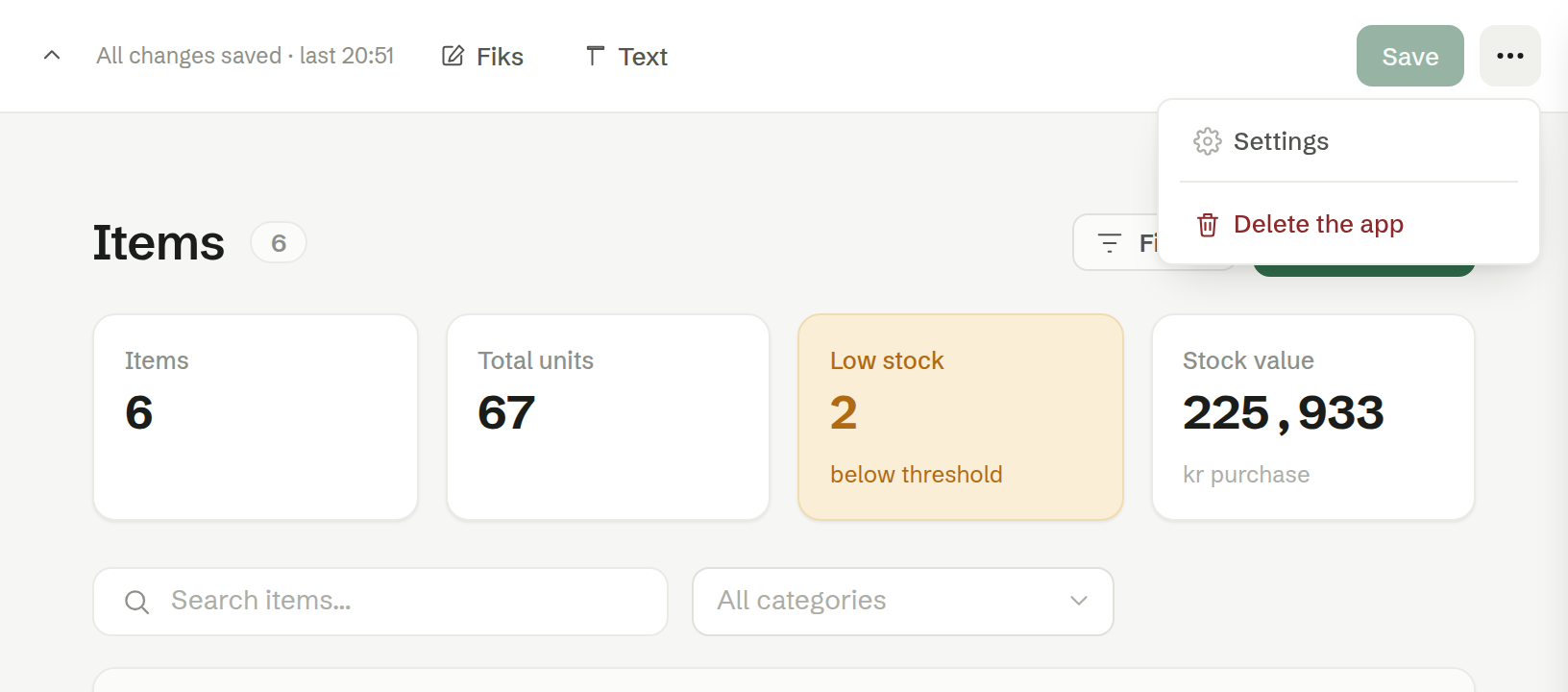
- Settings — the app's name, icon and deletion. See App settings.
- Delete the app — removes the app for everyone. Brigg asks you to confirm, and it cannot be undone.
Who can change an app
You can change, save and delete the apps you made. Changing, saving or deleting a colleague's app takes an owner or administrator. Admin
Colleagues who may not change an app simply use it: they see no pencil and no toolbar. They can still ask their own agent to work with the app's data.