
Who can see what you have made is decided in three steps, from the smallest audience to the largest:
- Only you — while it has never been saved.
- Everyone in the workspace — once it is saved.
- People outside — with a share link, or by publishing a website on the web.
Apps are shared by saving them
A new app is yours alone until you press Save. From then on, everyone in the workspace has it in their menu and can use it — each of them seeing only the data their role allows. There is nothing more to share: an app runs inside Brigg, so people outside the workspace cannot open it.
The Share dialog
A website that is not on the web has Share in its toolbar. It opens the dialog that shows who can see the website, and where you make share links and publish it.
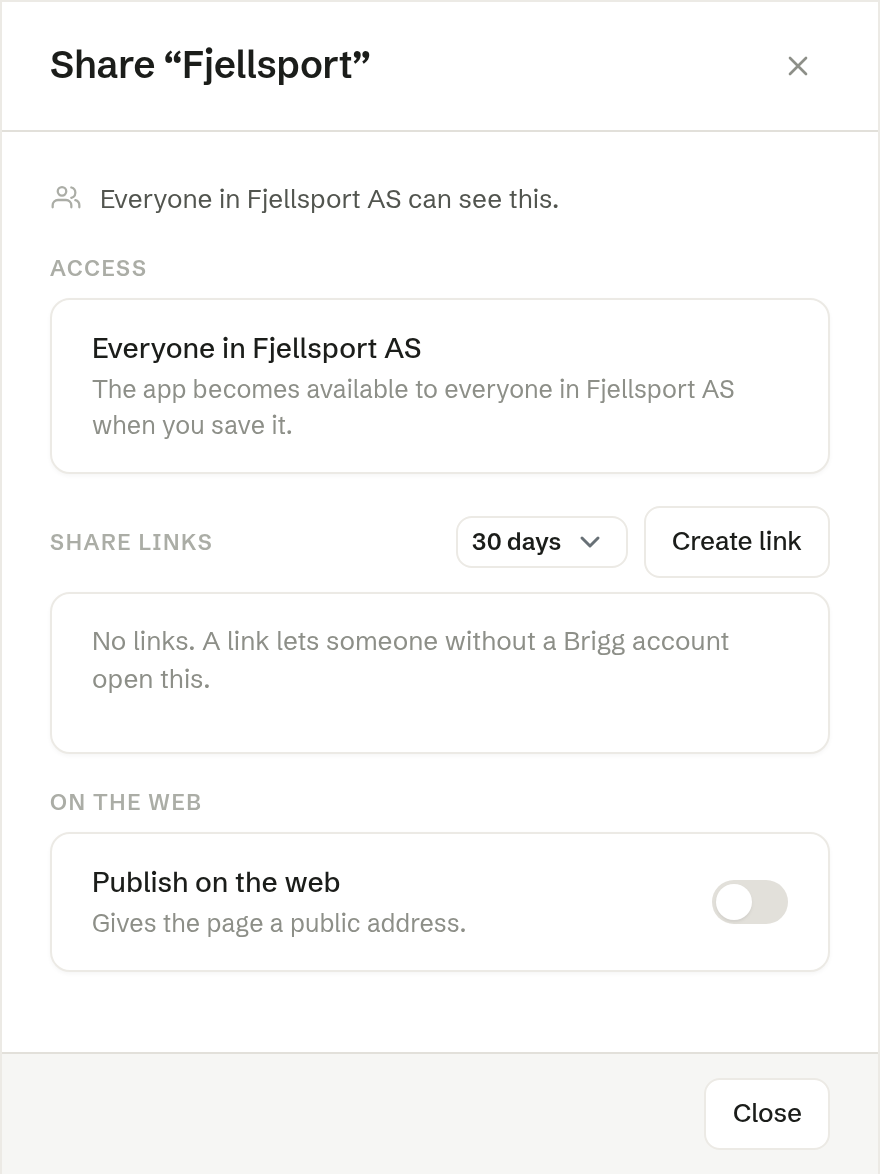
The line at the top sums up who can see it right now — for example Everyone in Fjellsport AS can see this.
Access shows where the website stands in the workspace: Not saved yet — nobody else can see it, or available to Everyone in Fjellsport AS once it is saved.
Share links
A share link lets someone without a Brigg account open the website — a customer who should see a draft of the new pages, say. The link always shows the last saved version, never your unsaved changes.
- Choose how long the link should work under The link lasts: 7 days, 30 days (the default), 90 days or 1 year.
- Press Create link.
- Press Copy next to the link and send it however you like.
Each link shows when it expires. Revoke stops a link working at once — for example if it was sent to the wrong person. You can have several links at the same time and revoke them one by one.
On the web
Publish on the web gives the website a public address. Anyone can open it, and it may show up in search engines — so you do not need this to show the website to a few people; use a share link instead. When it is on, the dialog shows the address.
Once a website is on the web, its toolbar no longer shows Share: Open the site, Copy link and Unpublish take its place. See Publishing a website.
Who can share
Whoever may change the website can make and revoke share links and publish it: the person who made it, and owners and administrators.