
A website made in Brigg is edited inside Brigg and published on the web with one button. Until you publish, every change you make is a draft that only you see; the live site does not change.
The website's toolbar

- The name — click it to rename the website.
- The address — when the website has its own domain, the address shows next to the name. Click it to open the site.
- The status line — Published 14:02 after a publish, or Unsaved changes — the published site is unchanged while you have a draft.
- Fiks and Text — point out changes for the agent, or edit the words yourself. See Changing an app and Editing text and languages.
- Open the site — opens the live website in a new tab.
- Discard and Publish — shown when you have unpublished changes.
- … (More options) — see below.
Publishing your changes
Ask the agent for changes, use Fiks, or edit with Text. The changes collect in your draft, and the toolbar turns amber. Look the pages over, then press Publish: the button says Publishing … while the new version goes out, and the status line says Published with the time when it is live. Until then, visitors keep seeing the previous version.
Discard throws your draft away and keeps the live site as it is.
A website that is not on the web has Save instead of Publish: saving makes the new version the one your colleagues see.
The More options menu
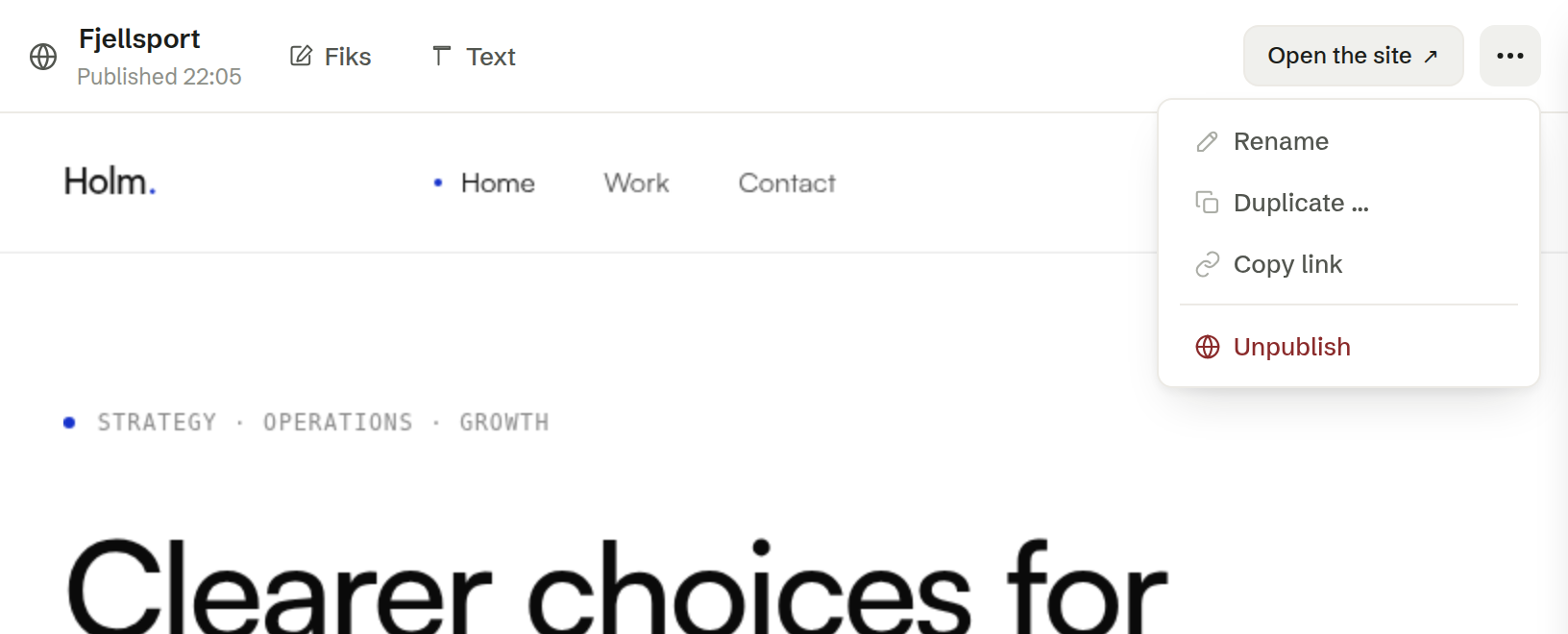
- Rename — change the website's name.
- Duplicate … — make a copy you can change freely, under a name you choose. A copy is never on the web until you publish it.
- Copy link — copy the website's address.
- Publish to the web — put a website that is not on the web online. It gets a public address that anyone can open, and it may show up in search engines.
- Unpublish — take the website off the web. The address stops working, but nothing is deleted, and Publish to the web puts it back.
Your own domain
A website gets an address on Brigg's domain to begin with. To use your own, such as fjellsport.no, open the website's settings with the gear next to it in the menu and choose Domain. Admin See Domains.
- Point your domain here shows the record to add at your domain provider — ALIAS or ANAME for the domain itself (fjellsport.no), CNAME for a subdomain (www.fjellsport.no). Copy copies it.
- Under Add a domain, type the domain and press Connect.
- The domain shows Awaiting validation with one more record to add at your domain provider. Add it and leave it in place: it proves the domain is yours and turns on HTTPS.
- When the domain shows Active, the website answers on it.
Retry checks a domain again, and Remove disconnects it. A domain bought through Brigg under Company settings › Domains can be pointed at a website from there in one step.
Visitor statistics
Statistics in the same settings shows how the website is visited: visitors, page views and where they come from, over the period you choose, and how many are on the site right now. It is collected without cookies and without tracking individual visitors, so the website needs no cookie banner. Admin
The contact form
A contact form on a website made in Brigg sends what visitors write straight to Customer service, where it lands as a conversation.
Who can publish
Whoever may change the website can publish it, take it off the web and make share links: the person who made it, and owners and administrators. Connecting a domain and reading the statistics are for owners and administrators. Admin