
You do not need the agent to change a heading, a button or a sentence. Turn on Text in the toolbar and write directly on the screen.
Editing text on the page
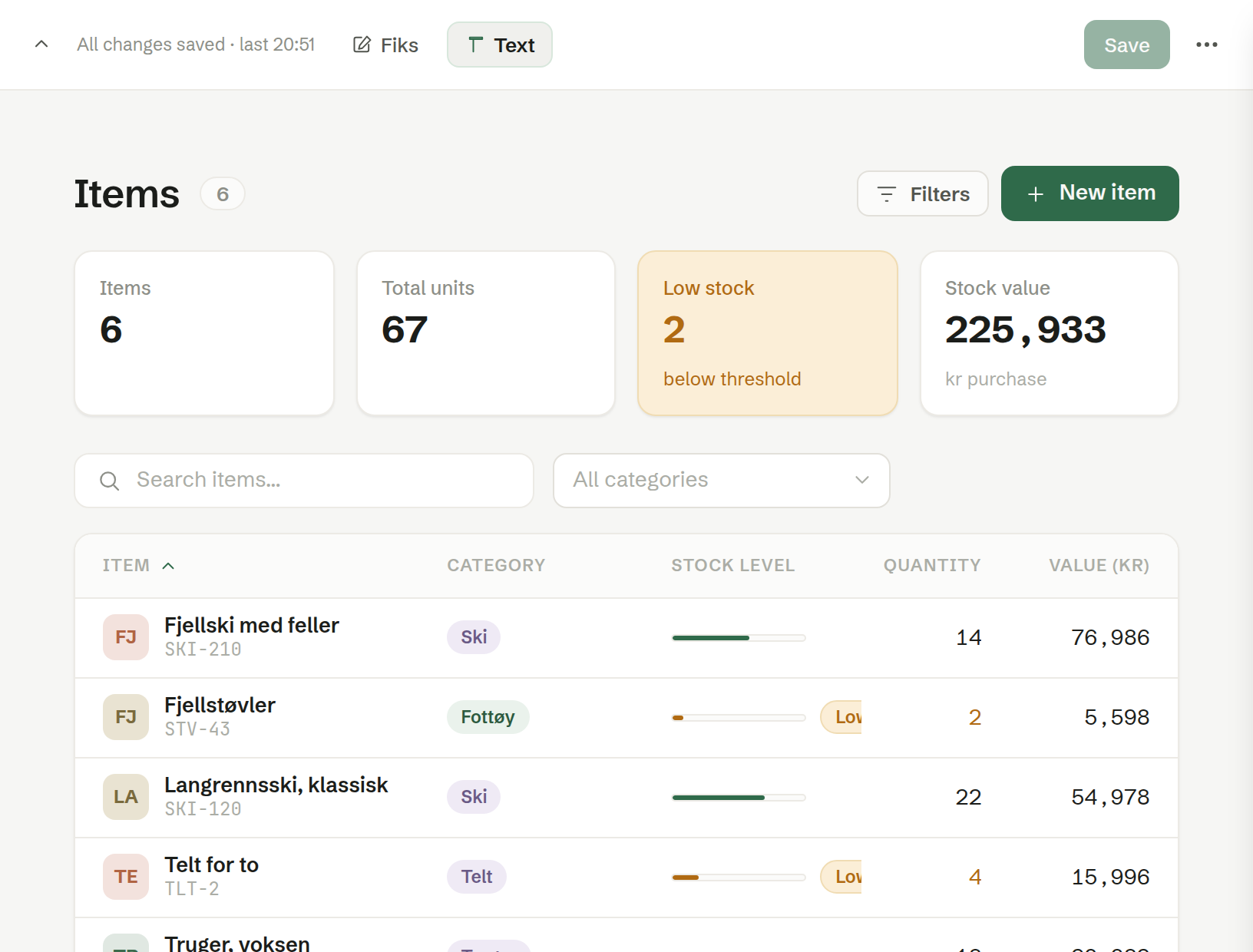
- Open the app or website and its toolbar (the Edit pencil on an app).
- Press Text — Edit text on the page. Every piece of text you can change is now marked.
- Click the text and type. Press Enter, or click somewhere else, and the change is saved.
- Press Text again when you are done.
Where the change ends up depends on what you are editing:
- In an app, the new wording takes effect straight away, for everyone.
- On a website, the change goes into your draft of the page. The live site keeps the old wording until you press Publish. See Publishing a website.
Text changes words only. For anything else — layout, colours, new fields — use Fiks or ask the agent. See Changing an app.
Languages
Apps and websites are written in your workspace's language. Brigg translates them for you:
- An app is translated into Norwegian, Swedish, Danish and English when it is saved. Each person sees it in the language they have chosen under Personal settings.
- A website is translated into the languages it offers. Ask the agent if you want it to offer another language.
Correcting a translation
A machine translation is not always the word you would choose. To correct one, switch to that language under Personal settings, open the app or website, turn on Text and write the wording you want. Your correction is kept: Brigg never overwrites text a person has written with a new machine translation.
Who can edit text
Whoever may change the app or website can edit its text: the person who made it, and owners and administrators. See Who can change an app.