
Press New app at the bottom of the left-hand menu. A short dialog finds out what you need, one question at a time, and ends with a proposal. When you accept it, the agent builds the app — or the website — while you carry on with something else.
What do you want to build?
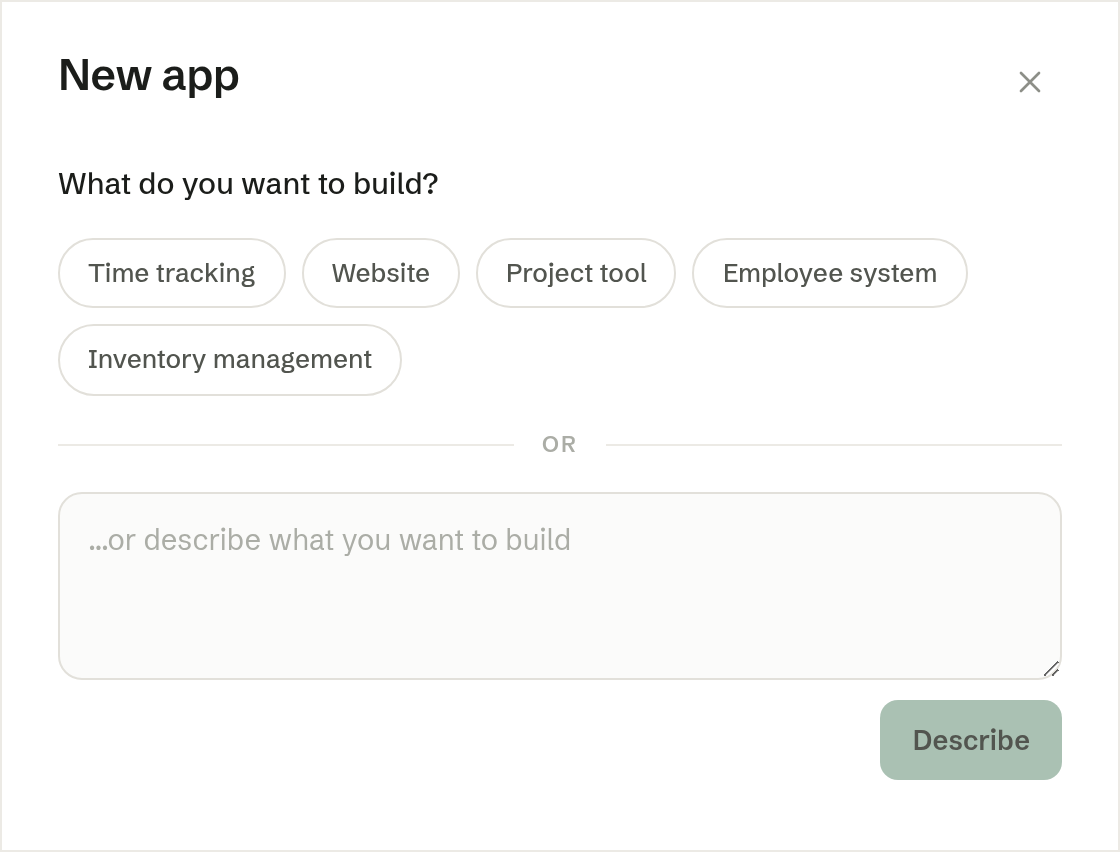
The dialog opens with What do you want to build? and five suggestions: Time tracking, Website, Project tool, Employee system and Inventory management. Press one to start from it.
Or describe it yourself in the box below — a sentence or two is enough, such as «a list of the rental gear, with what is out and when it comes back». Press Describe to continue.
A website is chosen the same way: press Website, or describe a website. The questions that follow are then about the pages, what they should say and who visits them.
A few questions
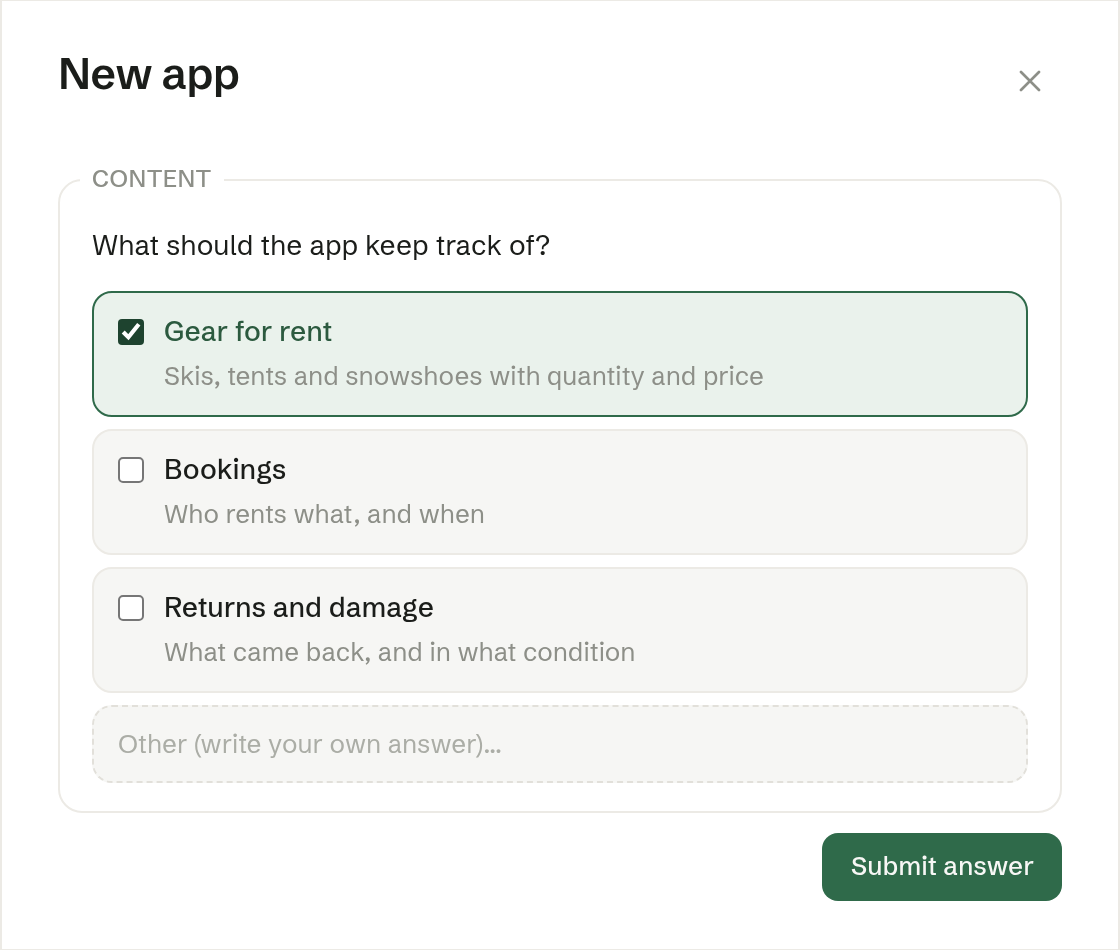
The agent then asks two to four short questions about what the app should hold, its main screen and who will use it — one question at a time. Choose one or more of the answers, or write your own in the last field, and press Send answer. While the next question is being written, the dialog says Thinking of the next question….
The proposal
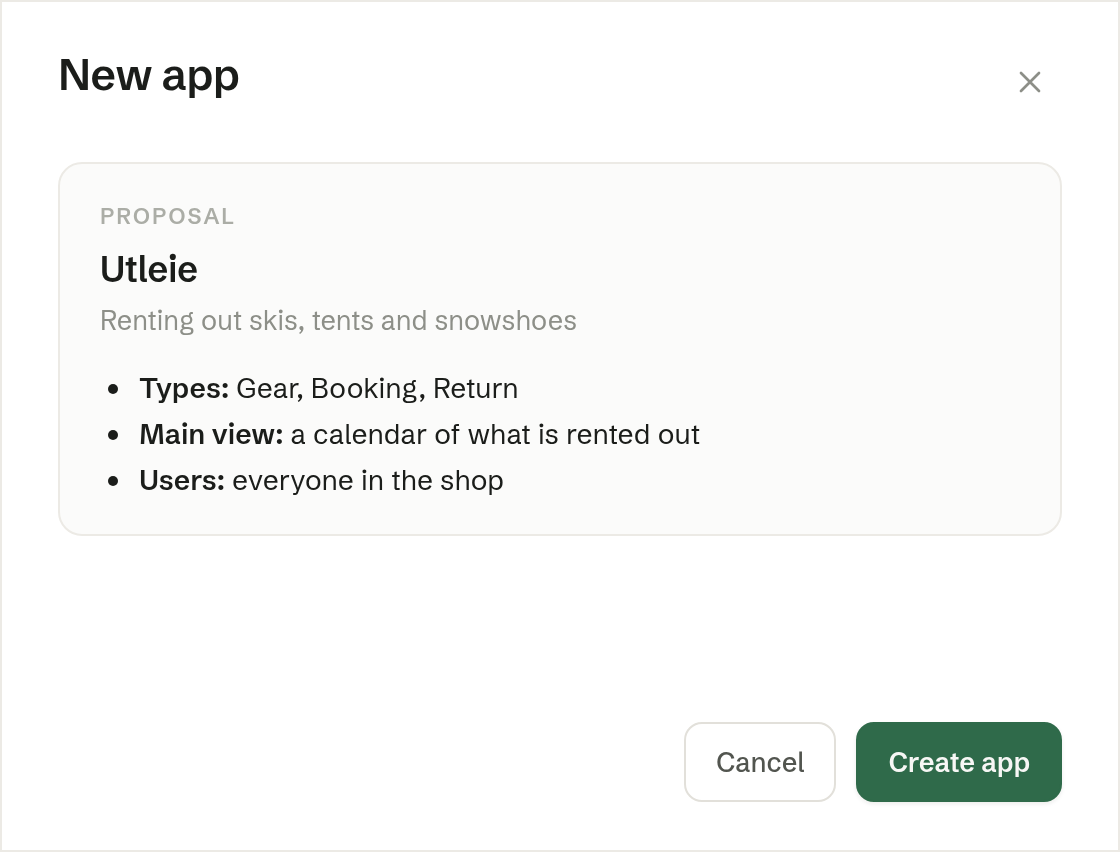
Last comes the Proposal: the app's name, a line about what it is for, and a short summary of what will be built. Press Create app (for a website, Create website) to have it built, or Cancel to stop.
You can close the dialog with the cross or Esc at any point before that. Nothing has been created, and nothing is left behind.
While the app is built
The app appears in the menu straight away, and opening it shows Setting up your app… until the first version is ready. The agent builds it as a task of its own: a card in the chat shows the steps as they happen, and you can keep working — or chatting with the agent about something else — in the meantime. When the build is done, the app opens with its screens.
A new app is yours alone until you save it: the toolbar says Not saved yet — no one else can see it. Look it over, ask the agent for changes, and press Save when it is ready for your colleagues. A new website goes live when you press Publish. See Changing an app and Publishing a website.
Asking the agent instead
You can also start from the chat. Ask the agent — «make an app for our vehicle log» — and it answers with a card showing what you wrote. Press Get started on the card to open the same dialog with its questions. The Create a new app suggestion in an empty chat opens the dialog too. See The Brigg agent.
Who can create apps
Every member can create apps and websites. An owner or administrator can hide New app from the menu for some or all members under Menu.