
If you use Claude, ChatGPT, Cursor or another AI tool that supports MCP, you can connect it to Brigg and ask it about your own workspace there — «what did we agree with Tindra Helse last week?».
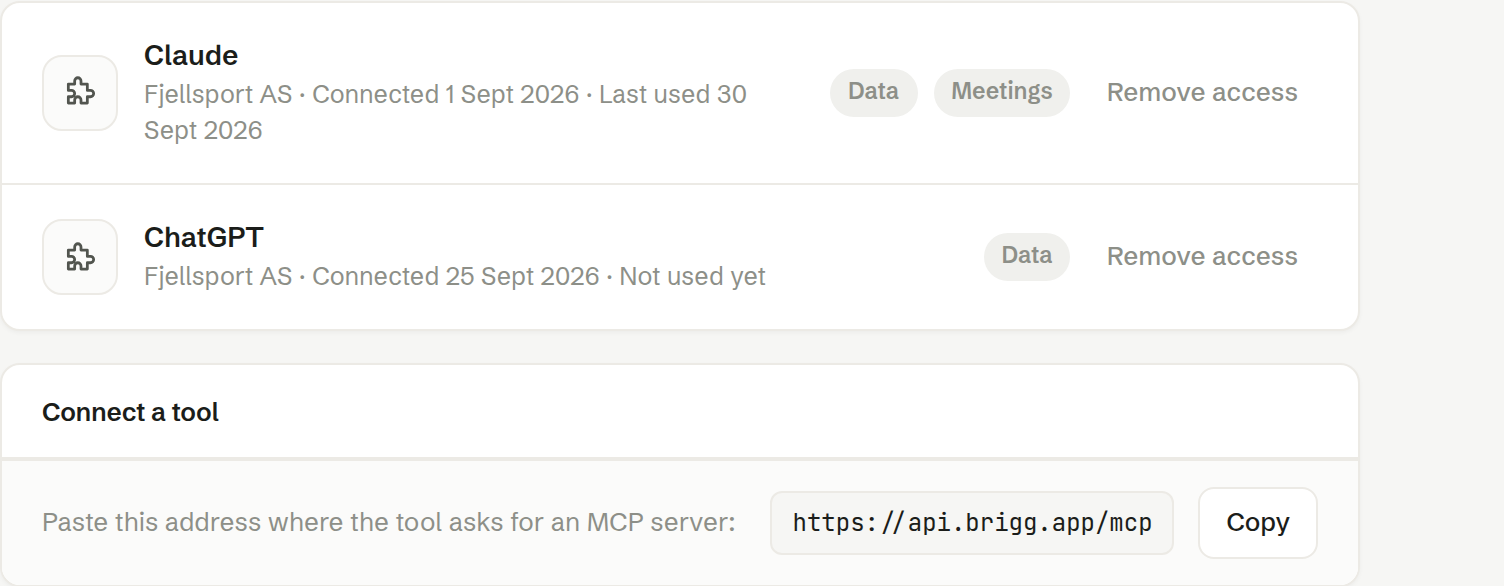
Connecting a tool
- Open Personal settings › MCP connections. Under Connect a tool, press Copy to copy Brigg's address.
- In your AI tool, add a new MCP server (sometimes called a connector) and paste the address.
- The tool sends you to Brigg. Sign in if you are asked to, choose the workspace if you have several, and press Grant access.
One connection covers one workspace.
What the tool can see
The tool can only read — it cannot change anything in Brigg. When you grant access you see what it asks for:
- Read your workspace — records such as customers, contacts, deals and tasks, everything your apps store, and your documents and their content.
- Read your meetings — meeting summaries, and the full transcripts of meetings you recorded yourself.
It sees exactly what you see in Brigg — never a colleague's private meetings, notes or documents.
Your connections
The page lists every tool you have connected, with when you connected it, when it was last used, and what it may read (Data, Meetings). Remove access cuts the tool off immediately; you can connect it again later.
Who can do what
Every member can connect their own tools. A connection belongs to the person who made it, so only they can see and remove it.