
A webhook sends something from Brigg to another system automatically. Under Company settings › Webhooks you give Brigg an address in your own system, and every time a meeting has been summarised Brigg sends the summary there. Admin
What is sent
There is one event: Meeting completed. It is sent when a meeting's summary is ready — not when the recording stops — and again if the meeting is recorded again. It carries the meeting's title, time, host, participants, the summary and the full transcript. Because the transcript leaves Brigg, only owners and administrators can add webhooks.
Open Example payload at the bottom of the page to see exactly what is sent.
Adding a webhook
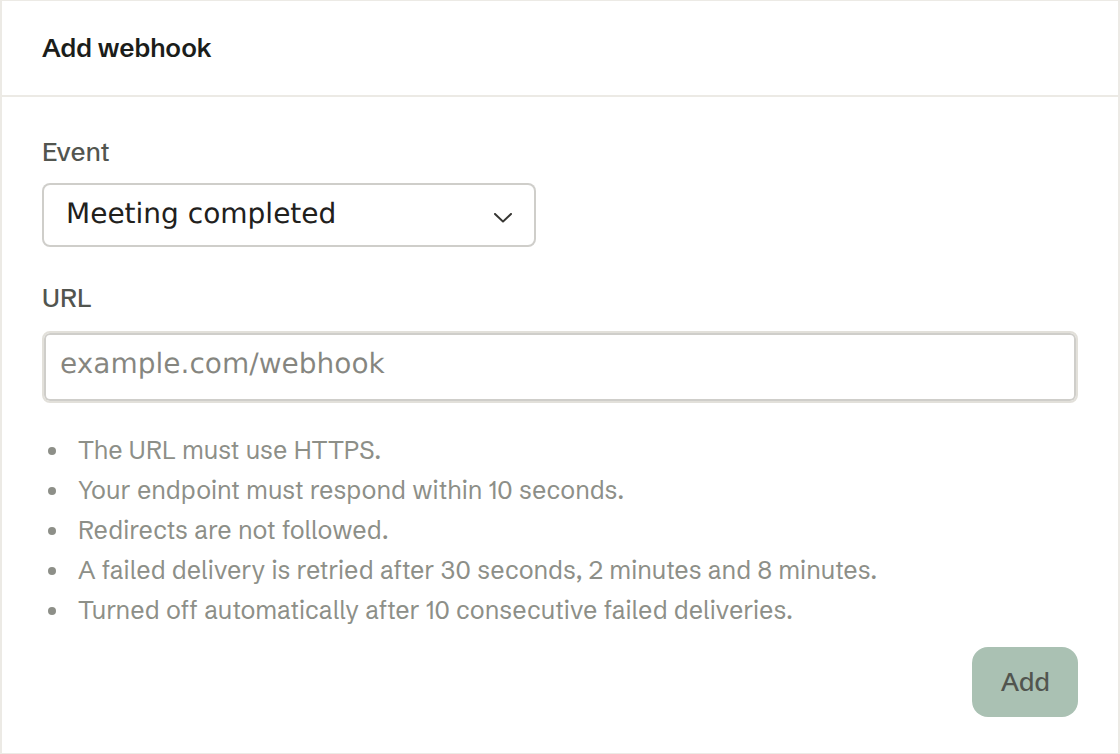
Under Add webhook:
- Event — Meeting completed.
- URL — the address in your system that receives it. It must use HTTPS.
Press Add. Each event can have up to three addresses.
The rules for your endpoint
- The address must use HTTPS, and redirects are not followed.
- Your endpoint must answer within 10 seconds.
- A failed delivery is retried after 30 seconds, 2 minutes and 8 minutes.
- After 10 failed deliveries in a row the webhook is turned off. The list shows how many have failed.
In the list
Each webhook shows its address, its event and when it was last delivered.
- Copy signing secret — copies the secret your system uses to check that a delivery really came from Brigg. How to verify the signature at the bottom of the page shows how.
- Send test event — sends a test delivery and tells you whether it arrived.
- Disable / Enable — stop or resume deliveries.
- Delete — removes the webhook. Its signing secret cannot be recovered.