
An automation (a rule) is an instruction Brigg follows on its own: when this happens, do that. It has three parts:
- a trigger — a schedule, or a change to a record (created, updated, deleted);
- conditions, if any — for example «only for deals over 100 000 kroner»;
- one or more actions — send a message, send an email, create or update a record, or wake the agent to do a task.
You do not fill in a form to make one. You ask the agent in ordinary words, and it sets the rule up. See Setting up an automation.
Your own automations
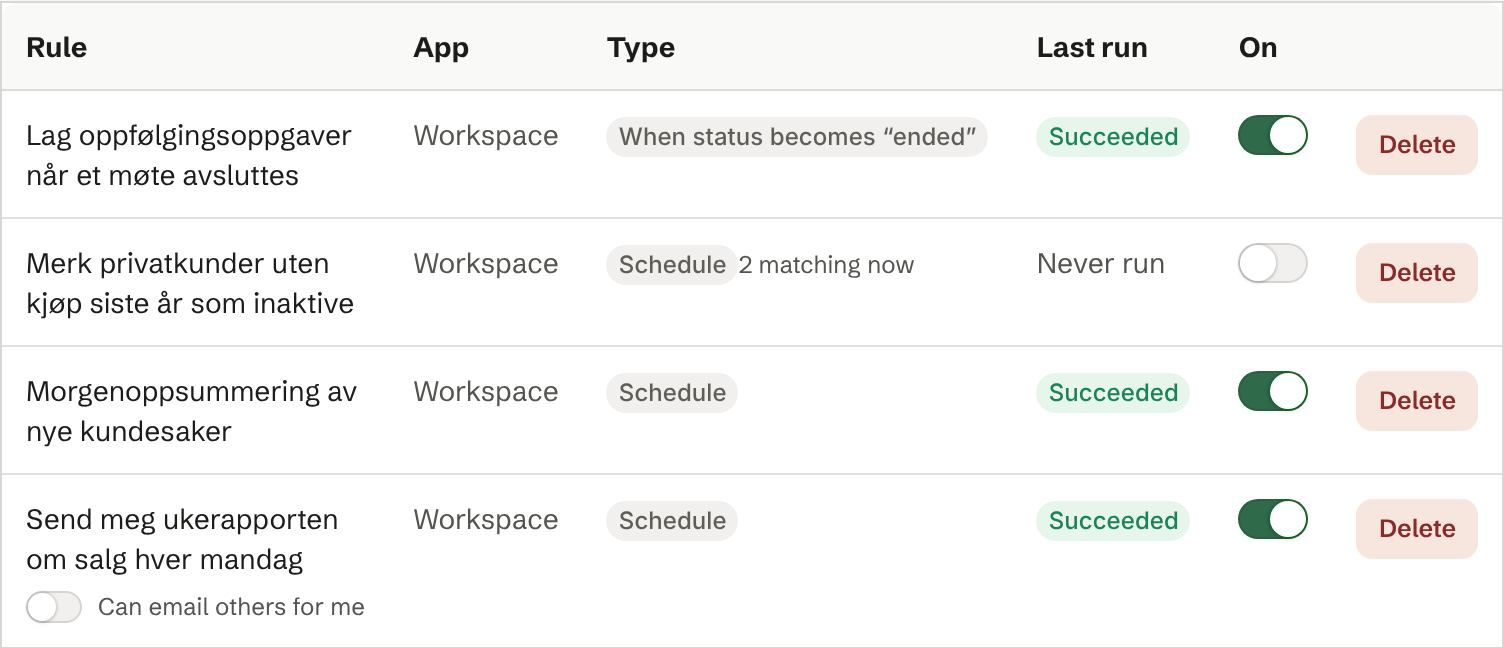
Personal settings › Automation lists the automations the agent has set up for you. Each row shows:
- Rule — what the automation does, in words. Click it to open its run log. See The run log and undoing a run.
- App — which app the rule belongs to. Automations the agent made for you show Workspace.
- Type — the trigger: Schedule, When something is created, When something is updated, When something is deleted, or New message. A rule that fires when a field changes to one value says so, for example When status becomes “ended”. Hover over the badge to see the schedule or what kind of record it watches. A scheduled rule that works through a set of records also shows how many records it matches right now, for example «2 matching now».
- Last run — the result of the latest run: Succeeded, Partial, Failed or Skipped, or Never run.
- On — the switch that turns the automation on or off. Off, it does nothing until you turn it on again; nothing is lost.
- Delete — removes the automation for good, after you confirm.
An automation that sends email may always send it to you. Under its name it has the switch Can email others for me: only once you turn it on can it email other people — from your address, with replies going to your agent. If Contact people by email from Brigg is set to Never under Permissions, it still does not email others. Without the permission, the run is Skipped with the reason «mangler tillatelse» (missing permission).
These automations are yours. Colleagues do not see them, and if you leave the workspace they are switched off.
The company's automations
Company settings › Automation lists the automations that came with the company's apps. Admin
They work the same way, with two differences: a rule that Belongs to the app can be switched off but not deleted, because the app would bring it back; and a Built-in rule is one the app needs to work, so it cannot be switched off either.
When automations run
An automation runs for the whole workspace, not only for your own records — a rule about meetings reacts to your colleagues' meetings too. When it wakes the agent or sends an email, though, it only does so about records you can see yourself. Changes made by an automation never trigger another automation, so two rules cannot set each other off in a loop.
Who can do what
Every member manages their own automations; nobody else sees them. Owners and administrators manage the company's automations.