
Company settings › Integrations connects Brigg to the CRM and recruiting systems your company already uses. Once connected, the agent finds the right customer or candidate for a meeting, brings their details into the meeting brief, and can send the meeting notes back to the right record over there.
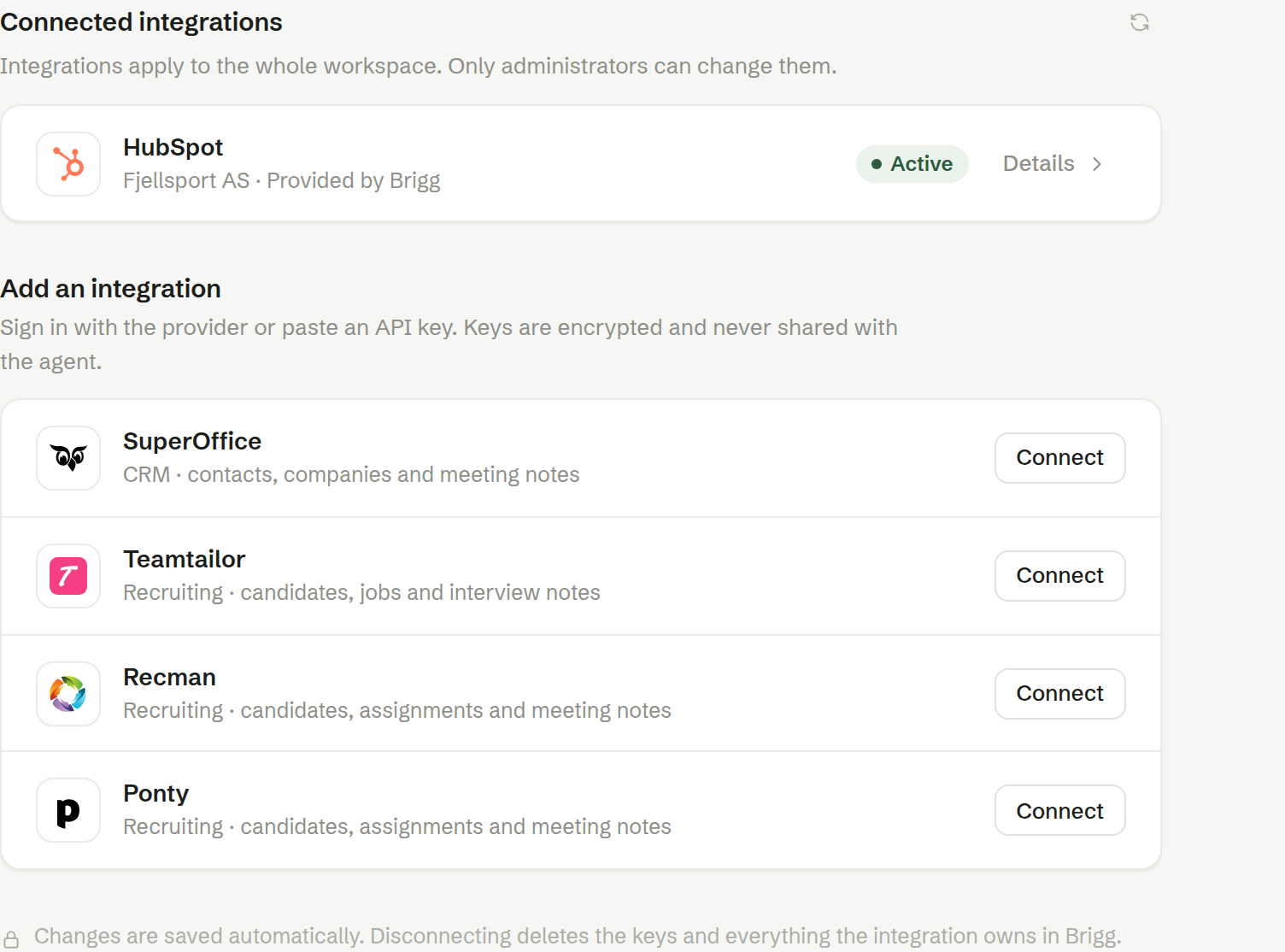
The systems you can connect
- HubSpot and SuperOffice — CRM: contacts, companies and meeting notes.
- Teamtailor, Recman and Ponty — recruiting: candidates, jobs or assignments, and interview notes.
All of them are provided by Brigg.
Connected integrations
The top of the page lists what is connected, with a status:
- Active — the integration is in use.
- Preview — connected, but nothing changes in either system until you activate it.
- Paused — temporarily not in use.
- Needs attention — something went wrong, for example a key that no longer works. Open Details to see what.
Details opens the integration's settings. See An integration's details. The refresh button next to the heading updates the statuses.
Connecting a system
Under Add an integration, press Connect next to the system. Admin
- Name in Brigg — what the integration is called in meetings and agent replies. Useful if you connect several accounts.
- Then either sign in with the provider — you go to its own page, approve the connection and come back — or paste the API key it gives you. The provider's own settings, if it has any, are shown in the same dialog.
- The integration then checks that it can reach the system and starts synchronising.
Keys are encrypted and never shared with the agent. A system that is already connected is not offered again.
Who can do what
Integrations apply to the whole workspace. Every member sees which integrations are connected; only owners and administrators connect, change or disconnect them.