
Company settings › Connections is where you give the agent access to other systems the company uses, so it can look things up and do work there for you. Admin
There are two kinds:
- MCP — a tool server: a service that offers the agent ready-made tools, such as an online shop or a project tool that publishes an MCP address.
- API — a service the agent fetches data from or sends data to over the web, such as your accounting system or your own system.
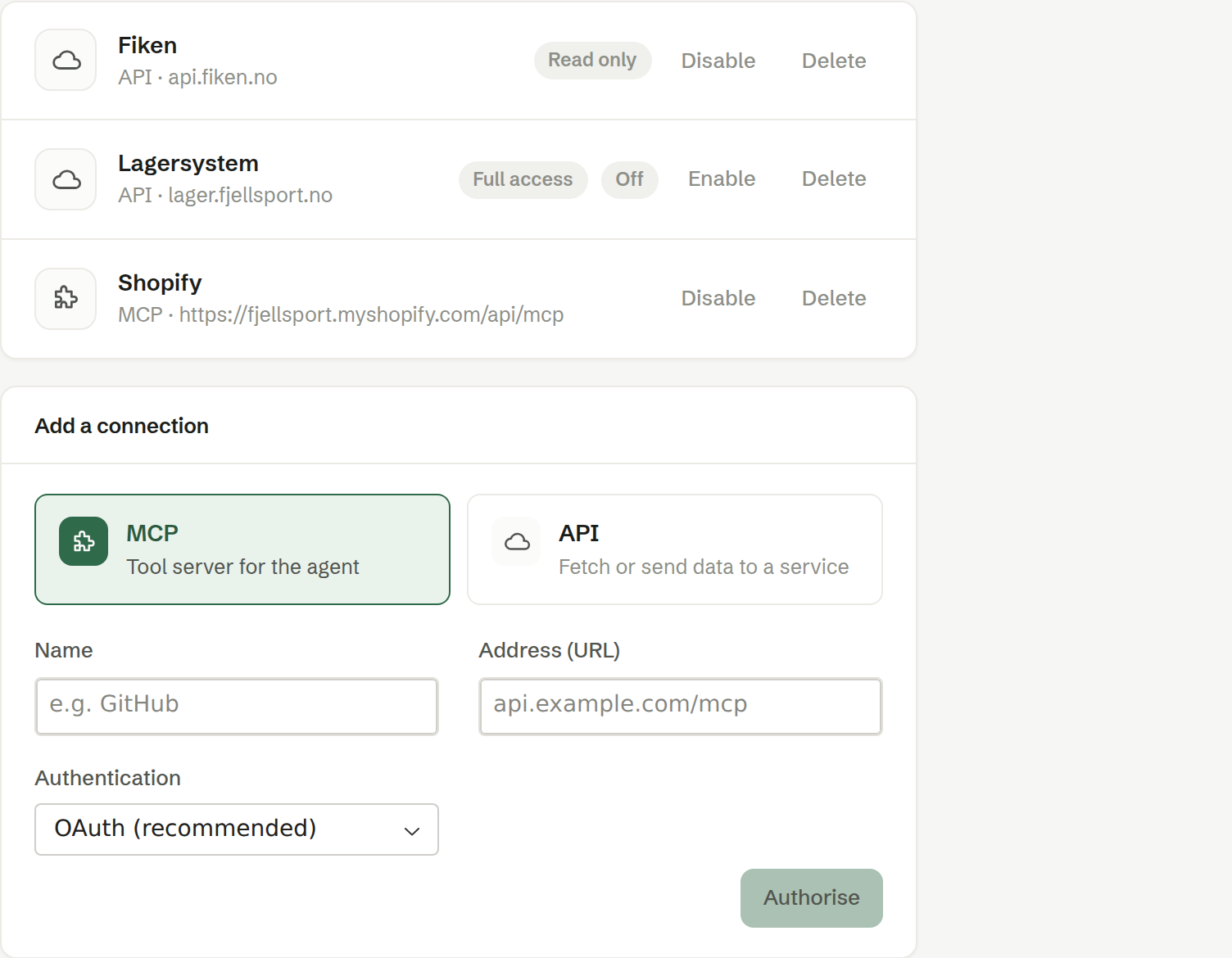
The list
Each connection shows its name, whether it is MCP or API, and its address or the domains it covers. An API connection also shows its access: Read only or Full access. A connection that is switched off shows Off.
- Disable / Enable — switch the connection off or on. Off, the agent cannot use it; nothing is deleted.
- Authorise — shown when an MCP server needs you to sign in again.
- Delete — removes the connection and its key. The agent loses access immediately.
Keys are kept safe
A key you paste is stored encrypted and is never shown again — not to you, not to colleagues and not to the agent. Brigg adds it to each request on the agent's behalf, so the agent can use the service without ever seeing the key. To change a key, delete the connection and add it again.
Adding a connection
Below the list, Add a connection lets you add an MCP server or an API. See Adding a connection.
Who can do what
Only owners and administrators see and change connections. Every connection is available to the agent of everyone in the workspace.