
A newsletter is a draft until it has been sent once. After the first send it moves to Sent. Newsletters made by a schedule are kept with their series on Scheduled and are not repeated in the other two tabs. Each tab shows how many newsletters it holds.
Drafts
Each row shows the name, the label Draft and when it was last changed. Click the row (or Edit) to open the newsletter and work on it with the agent — see Editing a newsletter. Send… opens the send dialog — see Sending a newsletter.
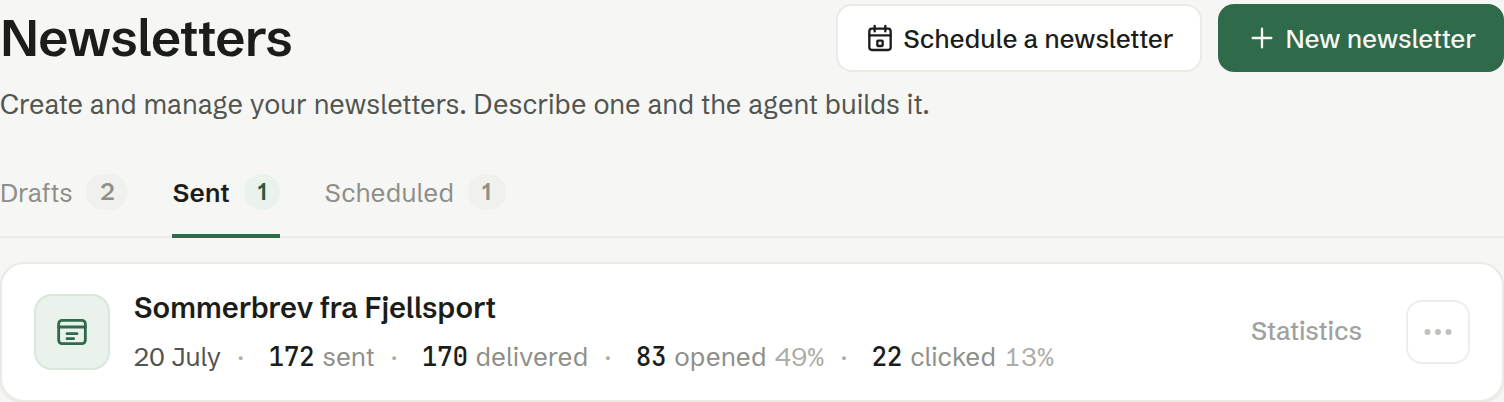
Sent
Each row shows the date of the latest send and four figures: sent, delivered, opened and clicked, with the open and click rates as percentages of the delivered mails. Click the row (or Statistics) to see every send of that newsletter — see Statistics. The newsletter itself opens from the ⋯ menu.
Scheduled
The newsletters the agent writes on a rhythm, one card per series. See Scheduled newsletters.
The ⋯ menu
- Rename — gives the newsletter a new name. The name is for you; recipients see the subject you choose when sending.
- Copy — makes a copy as a new draft and opens it. Handy for reusing last month's design.
- Delete — deletes the newsletter for the whole workspace. This cannot be undone.