
Press Send… on a draft, or in the bar of an open newsletter. Sending happens in two steps. What you choose is remembered for each newsletter, so you can close the dialog and carry on later.
Step 1: Recipients
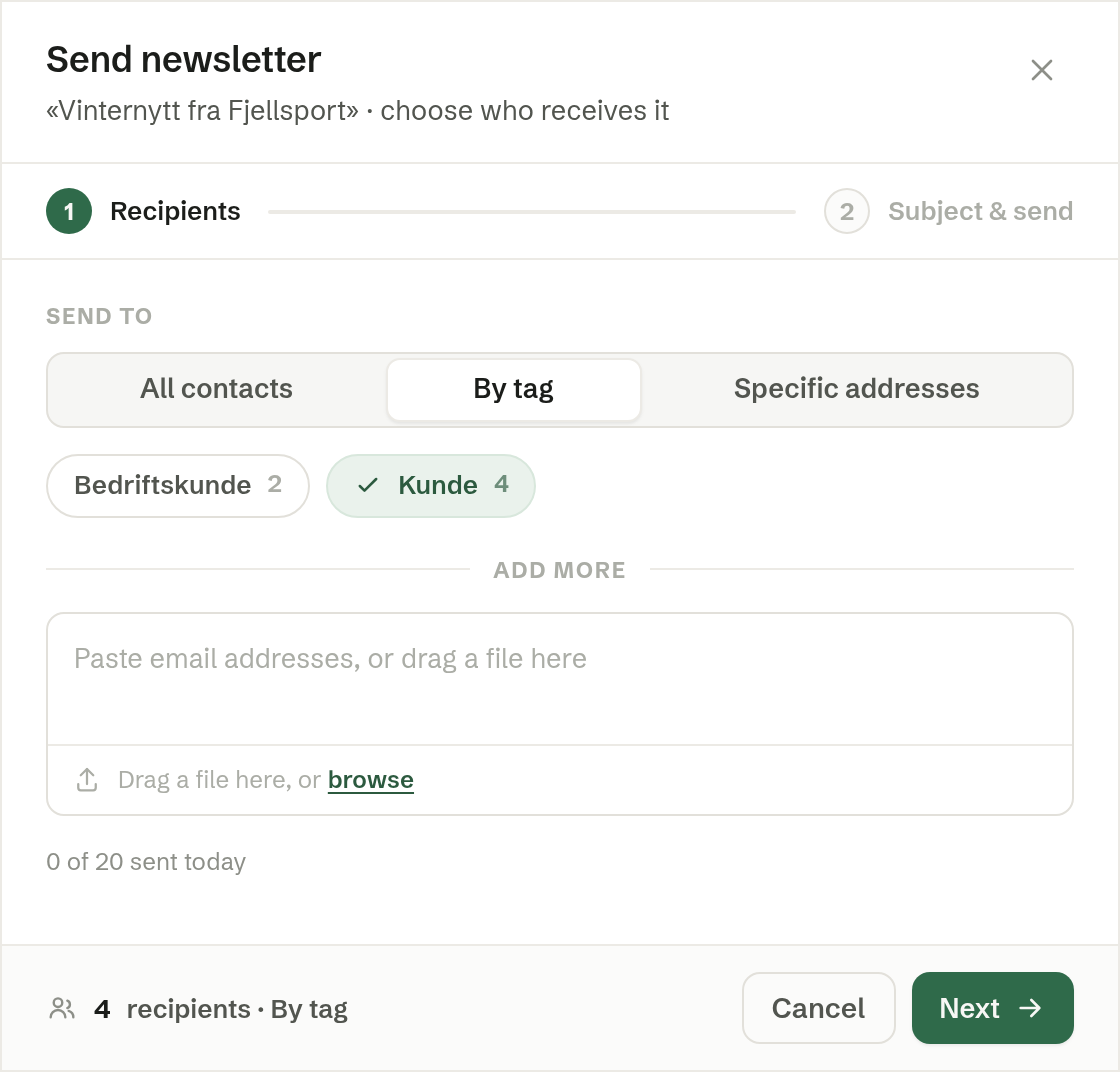
Under Send to you choose who receives it:
- All contacts (the default) — every contact in Customers with a valid email address.
- By tag — only contacts with the tags you pick. Each tag shows how many contacts have it. You can pick several.
- Specific addresses — only the addresses you add yourself.
Under add more you can paste email addresses, drag in a file with addresses, or browse for one. With All contacts or By tag the addresses come on top of the contacts. The addresses you add are summed up in a card that opens into the list, where each one can be corrected or removed. Before you can carry on, you must tick that you only contact these people in line with the marketing rules.
The bottom line counts the recipients. Invalid addresses are pointed out, and the number sent today is shown against your daily limit, which grows as you send with good delivery. Press Next.
Step 2: Subject & send
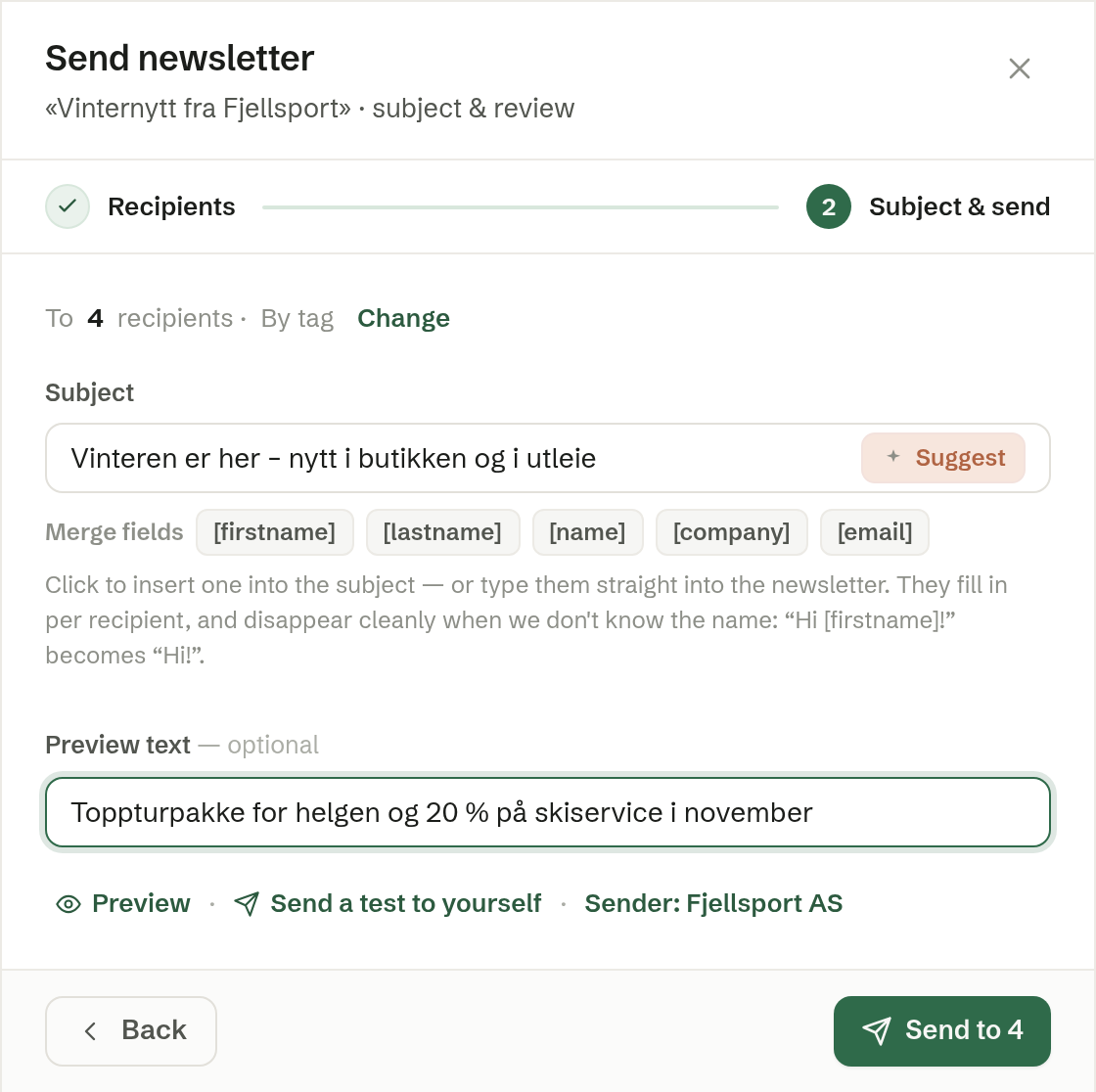
- Subject — what the recipients see in their inbox. It starts with the subject of the latest send, or the newsletter's title. Suggest fills in a subject taken from the content.
- Merge fields — click one to put it into the subject where the cursor is, for example «[firstname], winter is here».
- Preview text — optional. Shown after the subject in many inboxes.
Under the fields are Preview, Send a test to yourself and the sender. See Preview and test sends. Press Send to followed by the number of recipients to send. Back returns to step 1.
Sender Admin
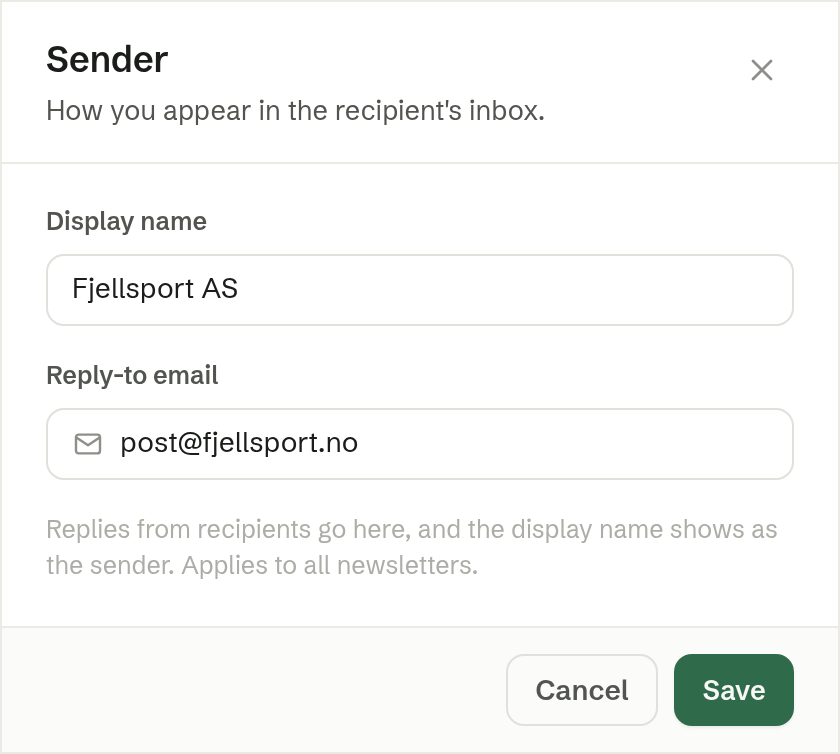
Sender: opens the sender settings. Display name is the name recipients see as the sender, and Reply-to email is where their replies go. They apply to every newsletter the workspace sends.
When it is sent
Sending publishes the newsletter exactly as it is. Contacts who have unsubscribed or whose address has bounced before are skipped, and the confirmation says how many. Every newsletter carries an unsubscribe link, and newsletters go from their own sender address, so they never affect the delivery of your other email. View stats opens the newsletter's statistics.
Unless the workspace is on a paid plan, a small Brigg card is added at the bottom of each newsletter.