
Press Details next to an integration under Company settings › Integrations to open its settings.
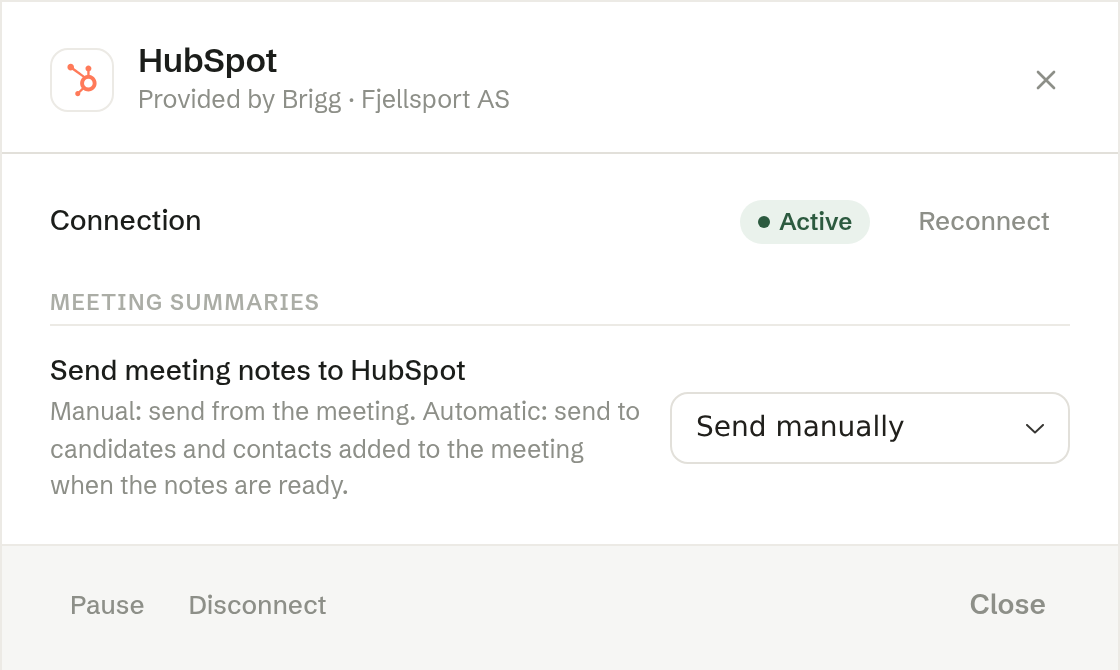
Connection
Shows the status and when Brigg last reached the system (Last successful connection). If something is wrong, a warning explains what failed, with Technical details underneath. Admin
- Reconnect — sign in again or paste a new key, for example when a key has expired.
- Edit settings — change the integration's name and the provider's own settings. Save and check tests the change before the integration is used again.
Synchronization
Brigg brings in and updates data from the other system automatically. This section shows the latest status for each kind of data. View sync history lists earlier runs, with what was processed and any errors.
Meeting summaries
For a CRM or recruiting system: how the meeting notes are sent to the customer's or candidate's record. Admin
- Send manually — the default. You send the notes from the meeting when you are ready.
- Send automatically — the notes are sent to the candidates and contacts added to the meeting as soon as they are ready.
Other actions an integration offers are set to Ask every time or Send without asking. With Ask every time, the person who started the action approves it before anything is sent.
Pause and disconnect
At the bottom of the dialog: Admin
- Pause — the integration stops being used until you turn it on again. A paused or new integration shows Approve and activate (or Finish connecting) instead.
- Disconnect — removes the integration. The keys are deleted, together with everything the integration brought into Brigg. Meeting notes already sent stay in the other system.