
Click a conversation to open it. On a phone the thread fills the screen, with an arrow back to the list.
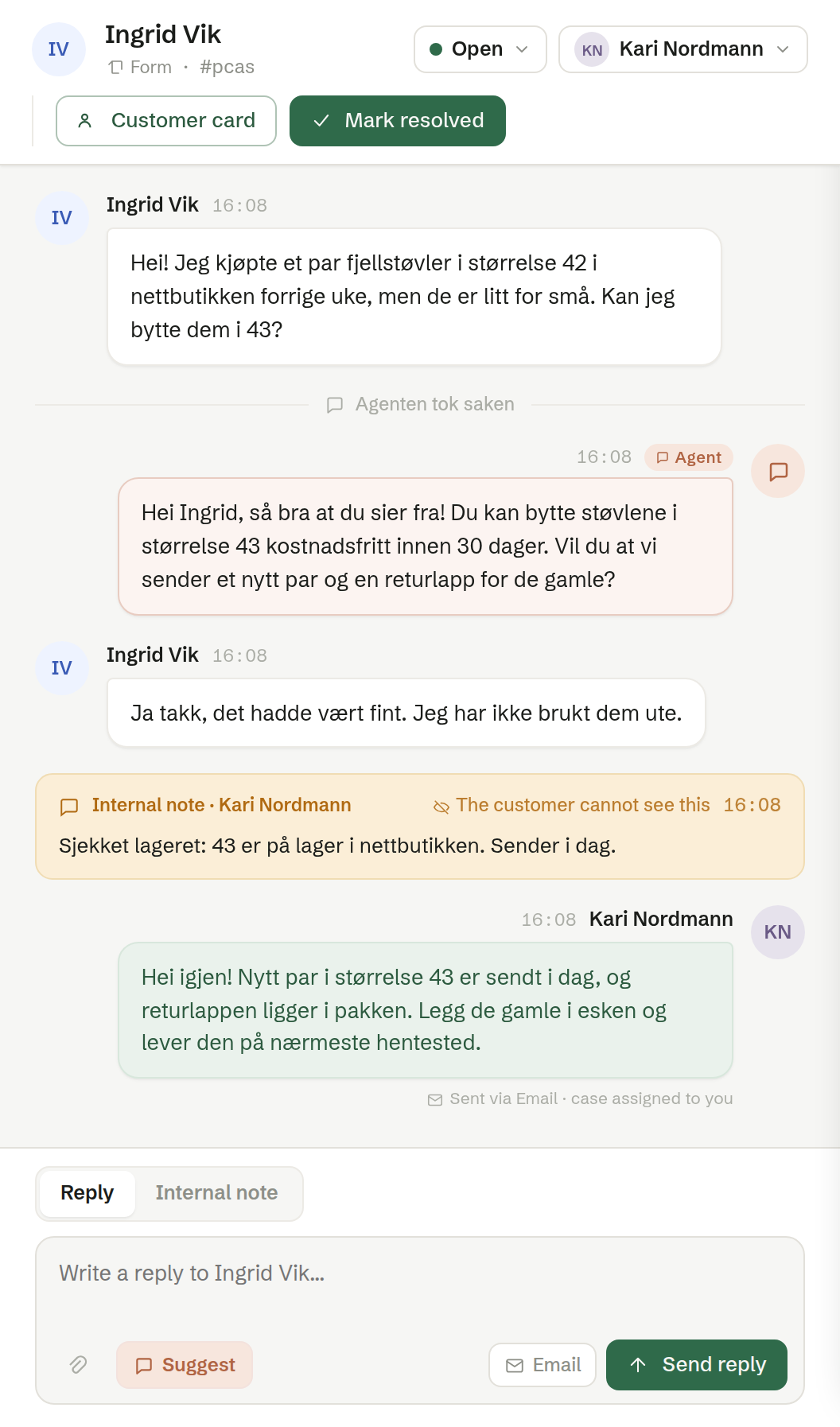
The top of the conversation
- The customer's name, the company, the channel and a short case number.
- Status — click it to change the status. Choose Open to reopen a resolved case, or Closed to close it.
- Assignee — who has the case. Pick a colleague, or Unassign.
- Assign to me — take the case yourself.
- Customer card — open the customer's contact in Customers.
- Mark resolved — the case is done and moves to Resolved.
The thread
Messages from the customer are on the left; replies from the agent (marked Agent) and from colleagues on the right. Events such as «the agent handed this over» or a status change are shown in the middle. An Internal note is yellow and marked The customer cannot see this.
Under each reply you see whether it was sent and delivered, and on which channel — for example Delivered via Email. If a reply could not be sent, the reason is shown, such as an email that bounced or a number missing its country code.
Replying
- Make sure Reply is chosen above the box.
- Write your answer, or press Suggest to have the agent write a draft from the conversation. The draft replaces the text in the box; nothing is sent until you send it.
- Under Reply via, choose the channel. Only channels that can reach this customer are offered: Web chat when the conversation is a chat, Email when the customer has an email address, SMS when they have a mobile number. The default is the channel the customer last used.
- Attach files with the paperclip if you need to (not on SMS).
- Press Send reply, or Ctrl+Enter / ⌘+Enter.
A web chat reply arrives at once; an email or text is queued and then sent. Your first reply moves a new case to Open, and an unassigned case is assigned to you. An email reply carries the inbox's signature.
Attachments can be images, PDF, Word, Excel, text and CSV files, up to 25 MB each and 25 MB per email in total.
Internal notes
Choose Internal note above the box to write something only the team sees, and press Save note. A note is never sent to the customer and does not change the status.
Phone cases
A conversation that came in by phone shows the transcript of the call. Call back dials the customer's number. You can reply in writing by SMS or email when the customer left a number or an address; if they left neither, Brigg says so instead of showing the reply box.