
Click New signing at the top of Signing.
Choose the document
The dialog offers three ways:
- Upload a file — PDF, Word, PowerPoint, HTML or an image. It is reproduced exactly as it is: what the signers see is what you uploaded.
- Pick a document you have from Shared or Mine.
- Make a new one from a document type or a template, and tell the agent what it should say. See Creating a document.
Click Send for signing →. Brigg makes a copy of the document ready for signing, with a place for the signatures.
Check the preview
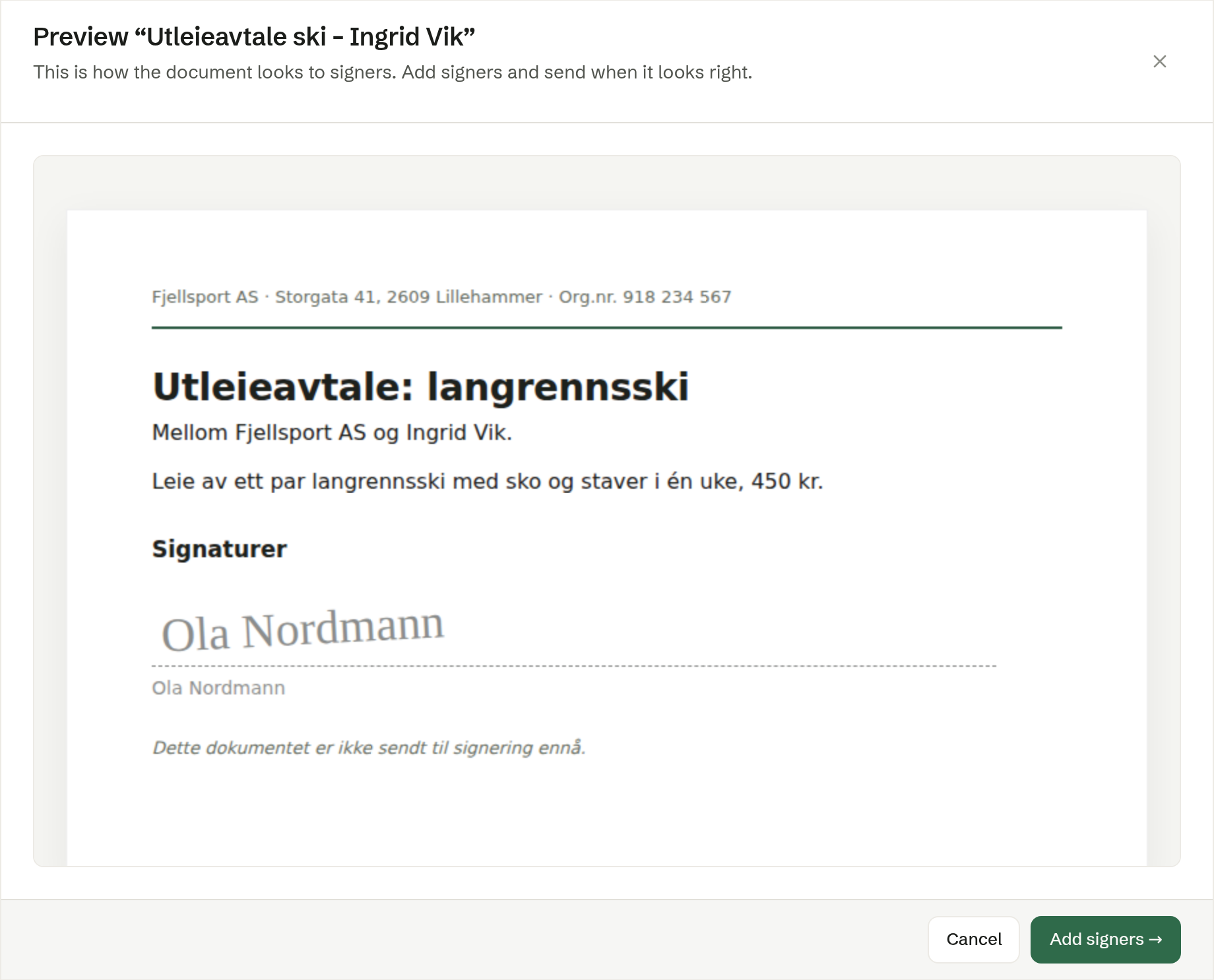
The preview shows the document exactly as the signers will see it. Click Add signers → when it looks right. See Requesting signatures.
Drafts
A document made for signing waits under Drafts until you send it. Click Send for signing → on the row to carry on, or click the row to open the document and change it first. The row's ⋯ menu has Rename and Delete.
From an open document
You can also send a document from where it is: Request signature in the toolbar or the … menu of an open document. See An open document.