
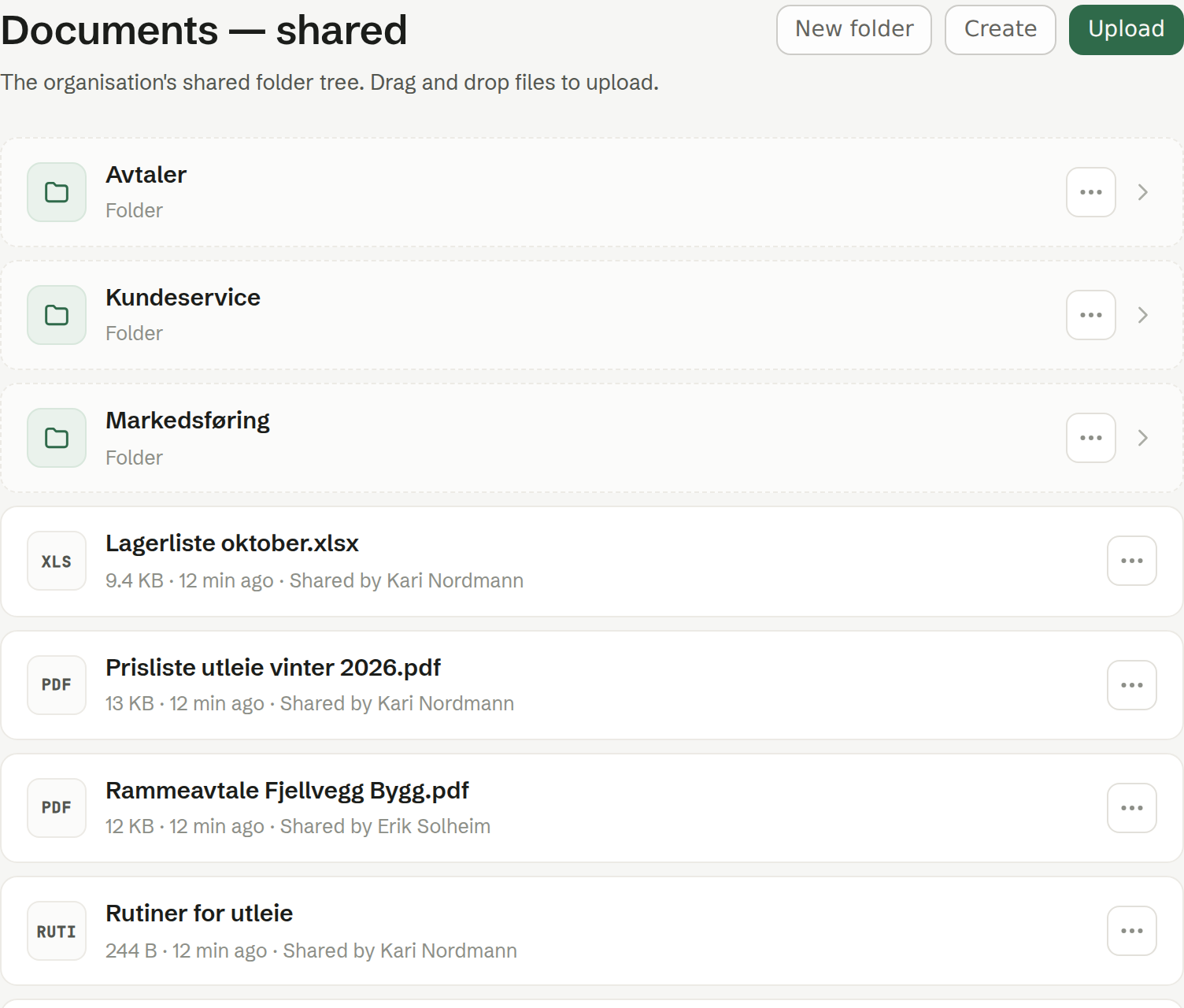
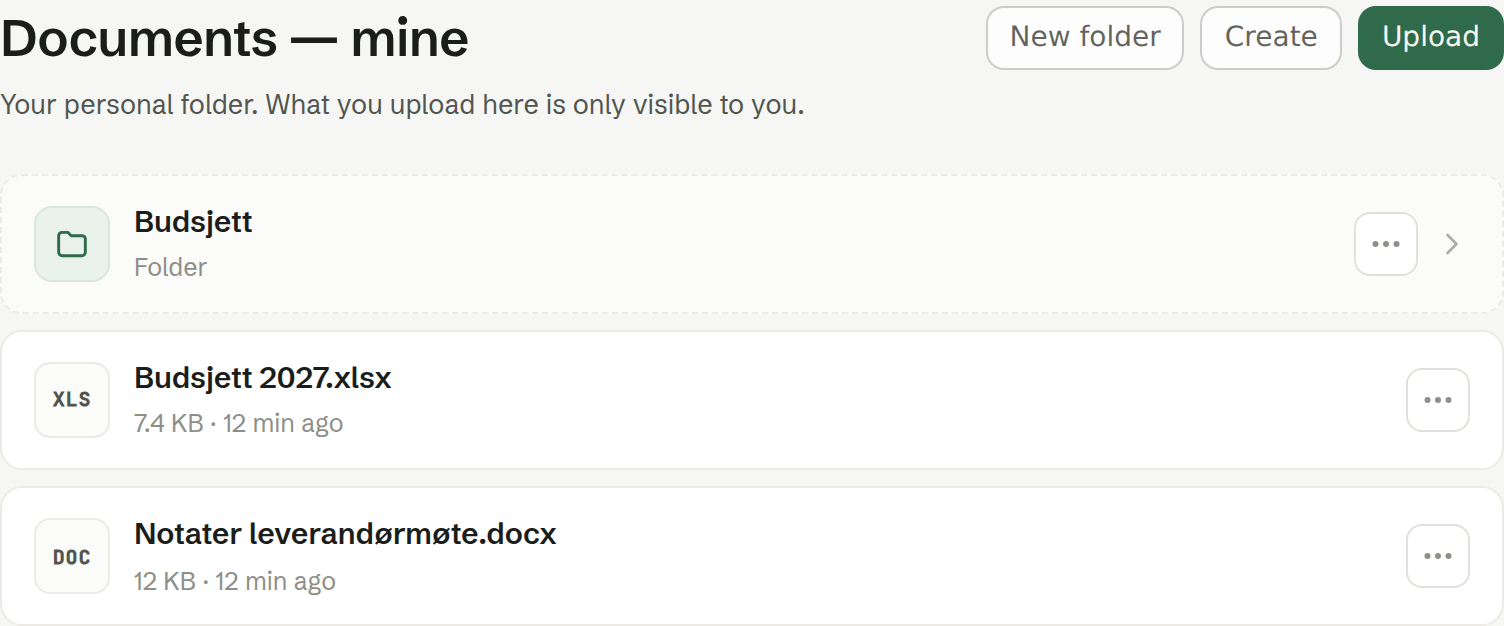
Documents has two folder trees. Shared is the workspace's: everything in it is visible to everyone in the workspace. Mine is yours: nobody else sees it, administrators included.
The list
Folders come first, then files. Each file row shows:
- an icon for the kind of file — PDF, DOC, XLS, IMG or ZIP for an upload, a page icon for a document made in Brigg;
- its size (or Document for one made in Brigg) and how long ago it was added;
- in Shared, Shared by and the name of the person who put it there.
Click a folder to open it. The path at the top (Root / folder / …) takes you back up. Click a file to open it: an uploaded file opens or downloads in a new tab, a document opens as a page, and a text document opens in the editor.
Uploading
Click Upload and pick one or more files, or drag files from your computer straight onto the list. They land in the folder you are standing in. Each upload shows its progress at the bottom of the list; large files go up in parts. An empty folder shows a drop area you can also click.
If the workspace's storage is full, the upload says so — delete files you no longer need.
Folders
New folder asks for a name and creates the folder where you are standing. A folder can be deleted from its ⋯ menu, but only when it is empty. See Renaming, moving and deleting.
Mine
Mine works the same way, for your own files. Use it for drafts and personal files; move a document to Shared when the team should have it. See Sharing a document.
Creating a document
Create makes a new document in the folder you are standing in. See Creating a document.