
Press Schedule a newsletter at the top of Newsletters. Setting up takes four steps; Next moves on, and a finished step can be clicked to go back to it.
1. Rhythm
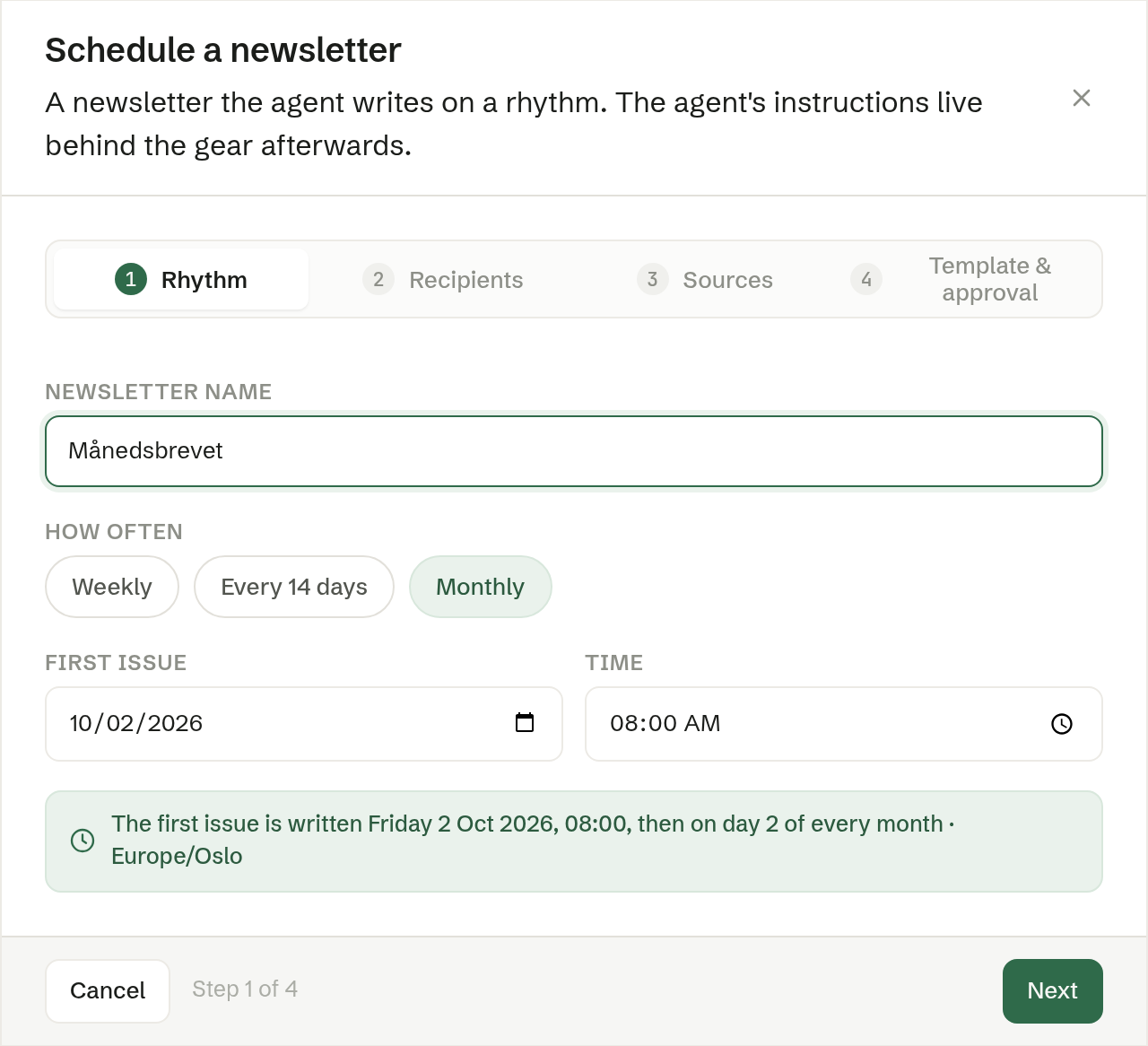
- Newsletter name — the series' name, for example «Månedsbrevet». Each issue is named after it, with its date.
- How often — Weekly, Every 14 days or Monthly (the default).
- First issue and Time — when the first issue is written. Tomorrow at 08:00 to begin with. The line underneath says when the first issue is written and how the rhythm continues, in your time zone.
2. Recipients
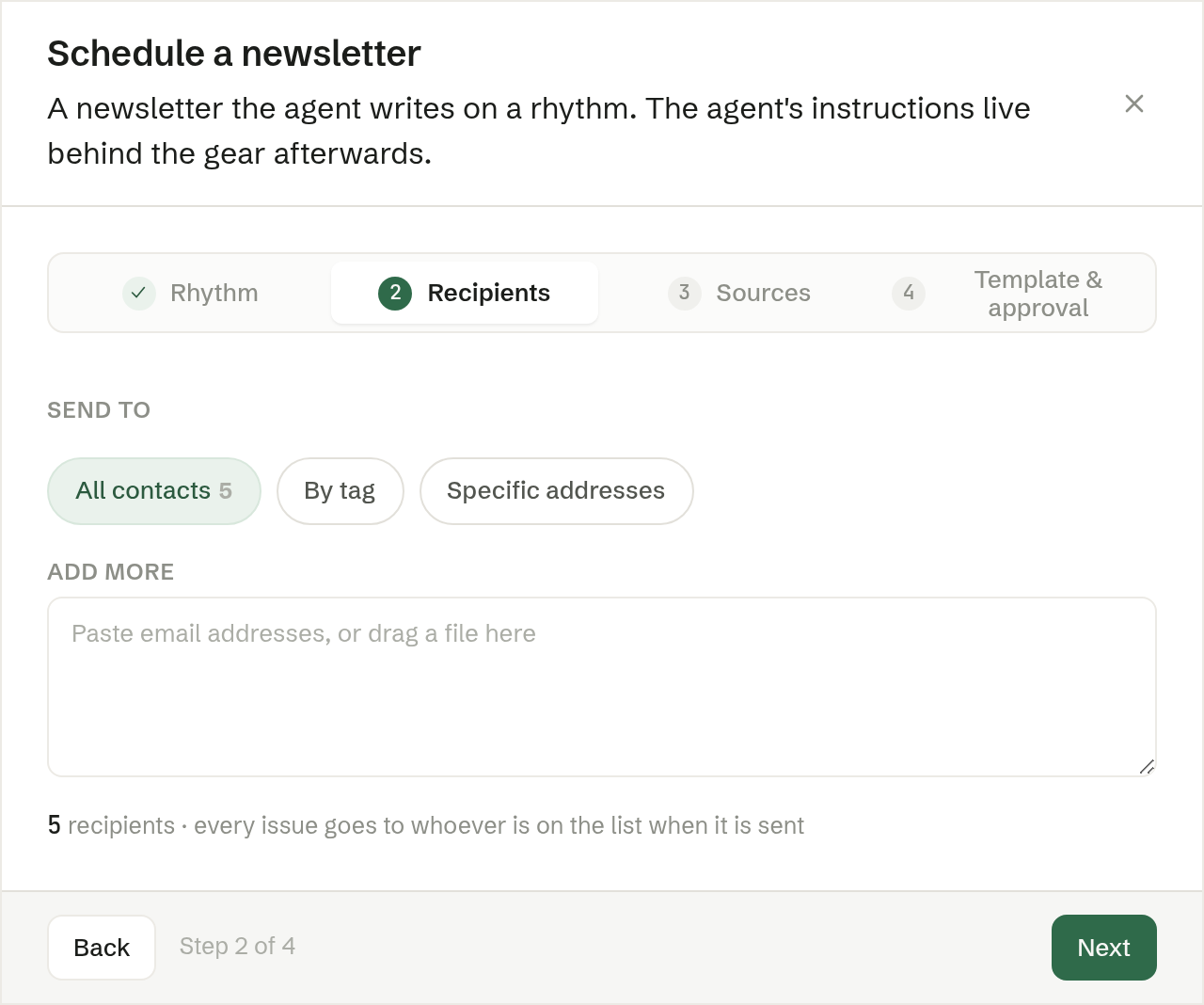
The same choices as when sending: All contacts, By tag or Specific addresses, plus addresses of your own. Each issue goes to whoever is on the list when it is sent, so new contacts are included automatically.
3. Sources
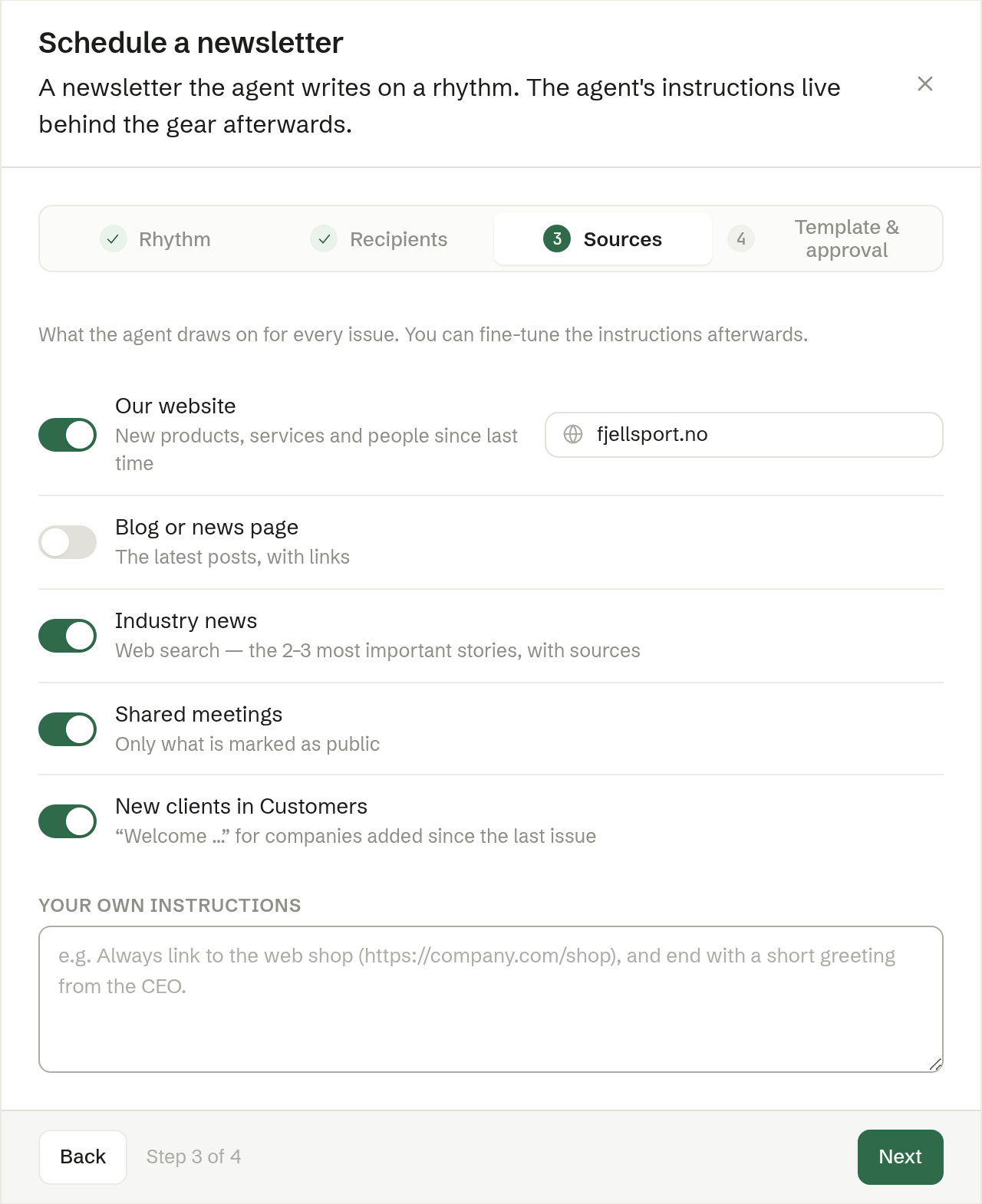
What the agent draws on for each issue. Switch each one on or off:
- Our website — new products, services and people since last time. Filled in with your company's address.
- Blog or news page — the latest posts, with links. Needs an address; off by default.
- Industry news — a web search for the two or three most important stories, with sources.
- Shared meetings — only what is marked as public.
- New clients in Customers — a welcome to companies added since the last issue.
- Your own instructions — anything else, in your own words, for example a link that should always be included.
The choices become the agent's instructions, which you can edit freely afterwards.
4. Template & approval
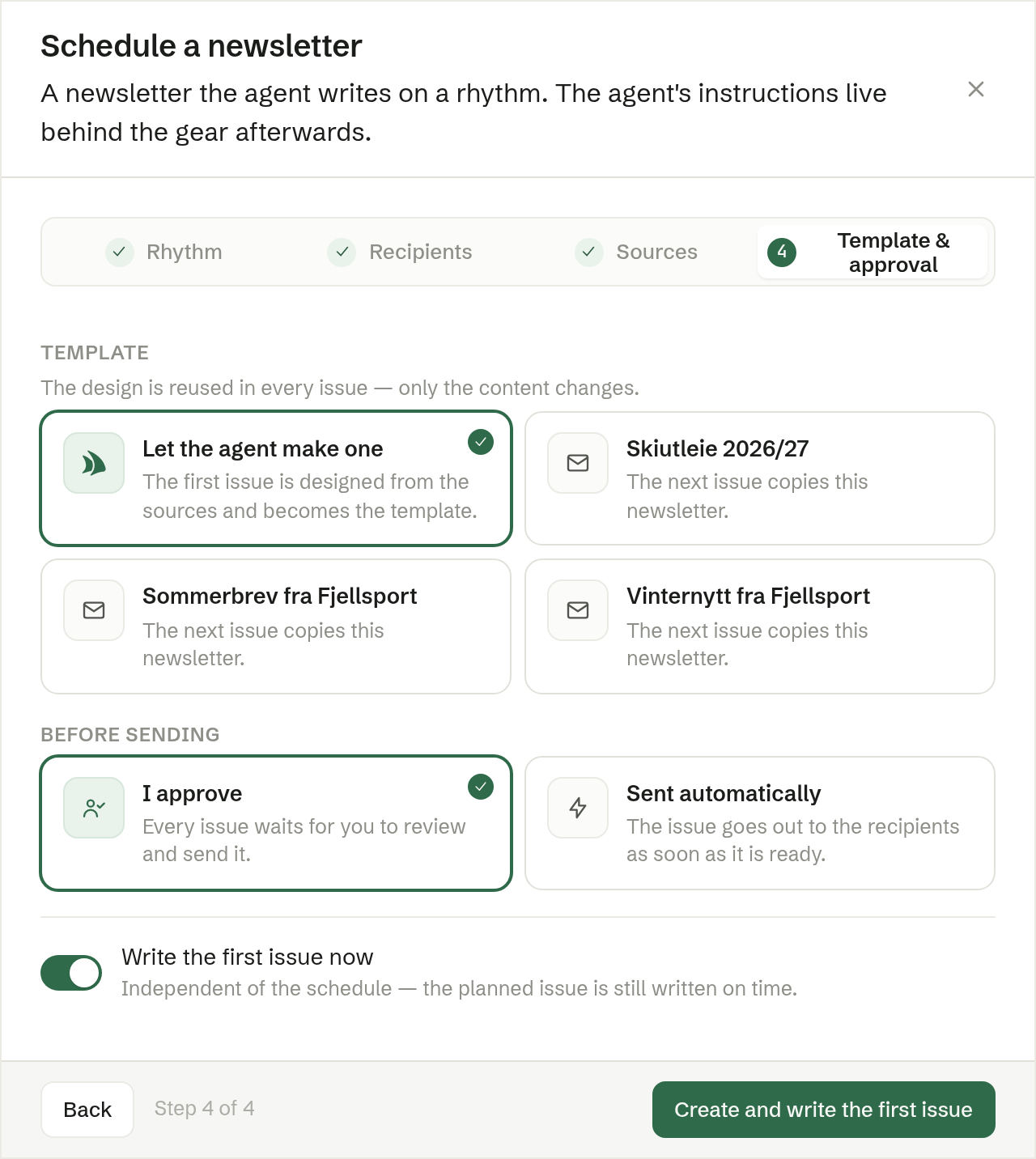
- Template — the design every issue reuses. Let the agent make one (the default) designs the first issue from the sources, and it becomes the template. Or pick one of your existing newsletters; the next issue is copied from it.
- Before sending — I approve (the default): every issue waits for you to review and send it. Sent automatically: the issue goes out as soon as it is ready.
- Write the first issue now — on by default. The first issue is written right away, and the planned issue is still written on time.
Press Create and write the first issue (or Create). The series appears under Scheduled.