
New template at the top of Templates turns a document you already have into a template.
Choose the document
The first step asks Which document should become a template? Pick a document from Shared or Mine, or upload a file — PDF, Word, PowerPoint, HTML or an image. Click Next.
Name and level
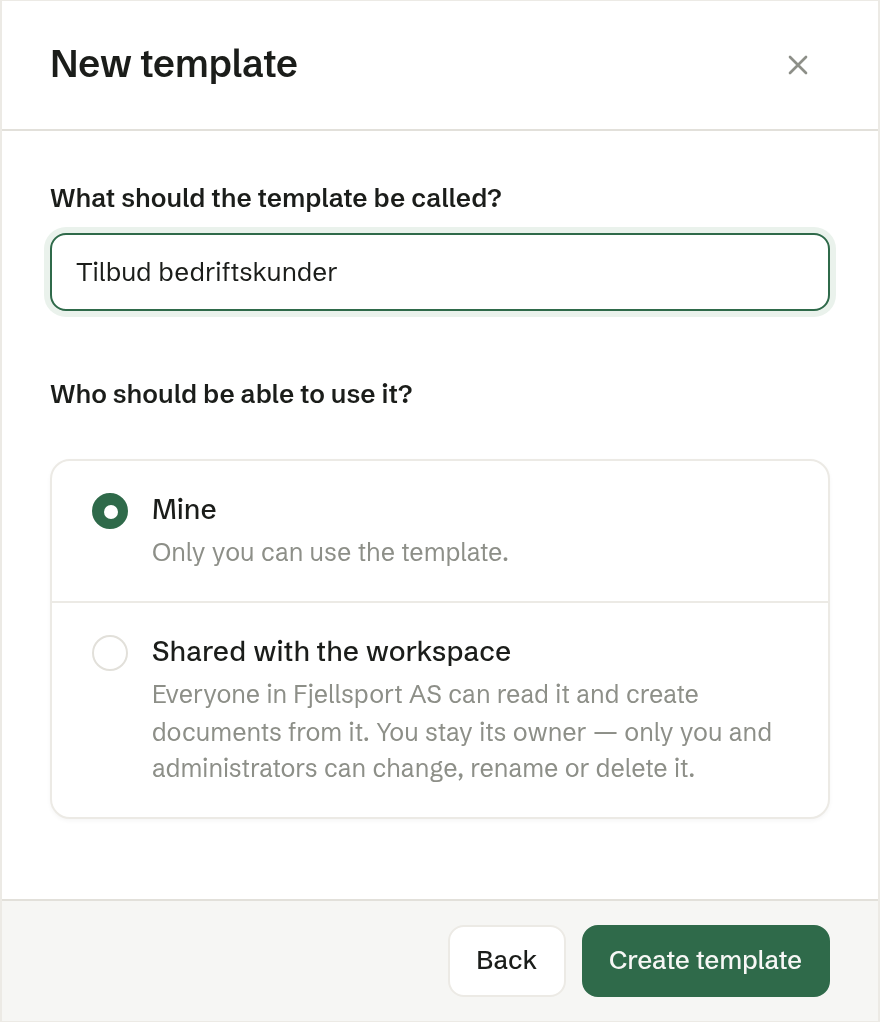
- What should the template be called? — suggested from the document; change it if you like.
- Who should be able to use it? — Mine (the default: only you) or Shared with the workspace (everyone can read it and make documents from it; you stay its owner).
Click Create template. The agent turns the document into a template — blanks where the details of one customer or one case were — and opens it so you can check the result. Use Text on the open template to correct anything.
A Word template
When you upload a .docx file, the dialog also asks What should the template produce?
- Word document (the default) — the Word file is used as it is. Filling it in keeps the formatting exactly, and the result downloads as a Word file. Fill-in instructions (optional) tell the agent how to fill it in, for example «Always formal tone».
- Brigg document — recreated as an editable document in Brigg.
A Word template is filled in from what you write, or from a meeting or a customer record, and the finished Word file is filed under Documents. A Word template can't be sent for signature.