
Brigg transcribes a meeting with the Brigg app — on your Mac or Windows computer, or on your iPhone or iPad. No bot joins the call: the app listens on your own device. In a browser you can read and work with meetings, but not record them. See Brigg on your computer and phone.
Three ways to start
- By itself. The desktop app notices when you are in a meeting in Teams, Zoom, Google Meet or another program that uses the microphone, and starts. You can make it ask first instead — see Your meeting settings.
- Start meeting. The round button at the bottom of the screen in the Brigg app records a meeting that is not in your calendar — for example one in person.
- From the meeting. Start on an upcoming meeting records that meeting, with its agenda and notes. On a meeting that has already been held, Start over records more on the same meeting.

When the recording starts from a video call, Brigg links it to the right meeting in your calendar by itself. If it picks the wrong one, or none, correct it on the meeting — see Connecting your calendar.
The meeting window
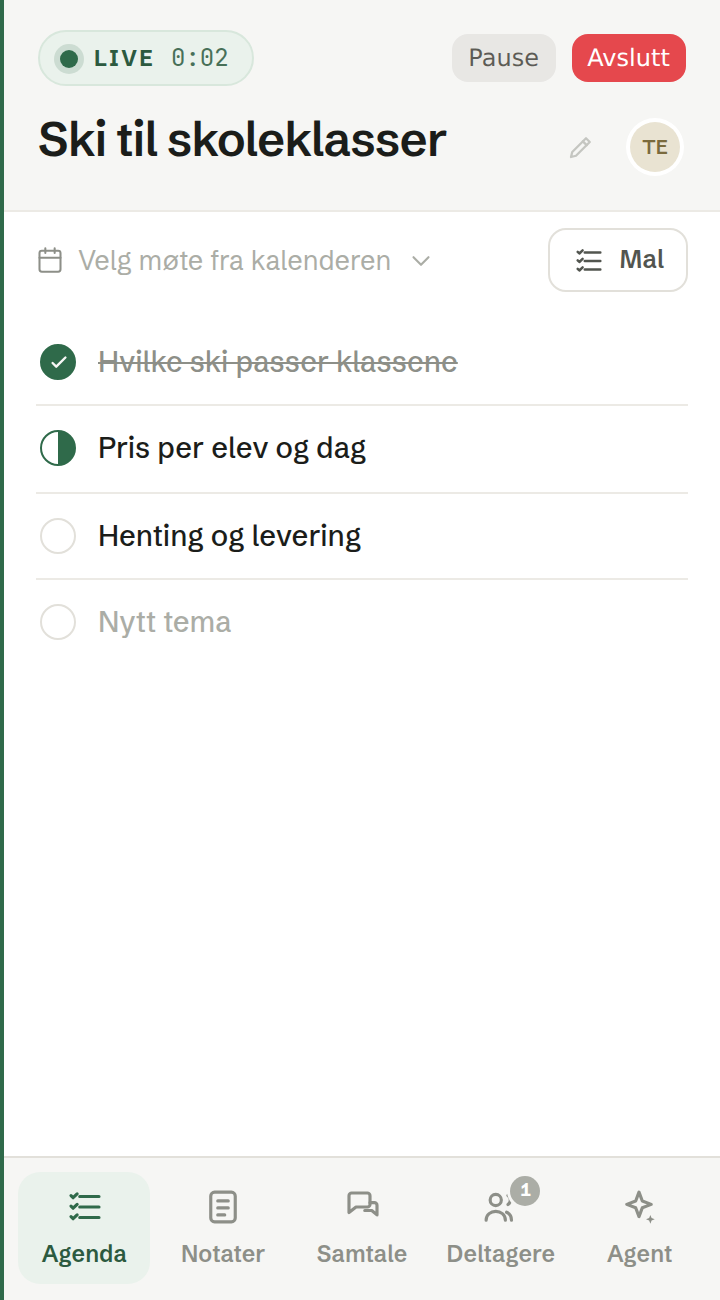
On the computer, a small window follows the meeting. It has five tabs:
- Agenda — the topics, which you tick off as you cover them, and Template to apply a meeting template.
- Notes — your own notes, which shape the summary. See Your notes.
- Participants — who is in the meeting.
- Agent — ask the agent about the meeting while it runs. If you have turned on advice during meetings, it also looks up what is mentioned: what it finds is collected under Findings at the top — the newest one, or all of them when you open the list — and short tips show up here and as notifications.
- Conversation — the transcript as it is written.
Pause and Resume stop and continue the recording, and End ends the meeting. If you have moved the window aside, Pin window puts it back in place.
When the meeting ends
The summary is written within a minute or two, and the meeting opens in Brigg. See The summary. If nobody spoke, or the meeting was only a few seconds long, it is not kept.
On the phone
The iPhone and iPad app records the same way: tap Start meeting, or Start on a meeting. The meeting is shown while it records, and the summary arrives in Meetings afterwards.