
A meeting template gives a meeting a standard agenda in one click, and can decide how its summary is written. Open Templates under Meetings in the left-hand menu.
The list
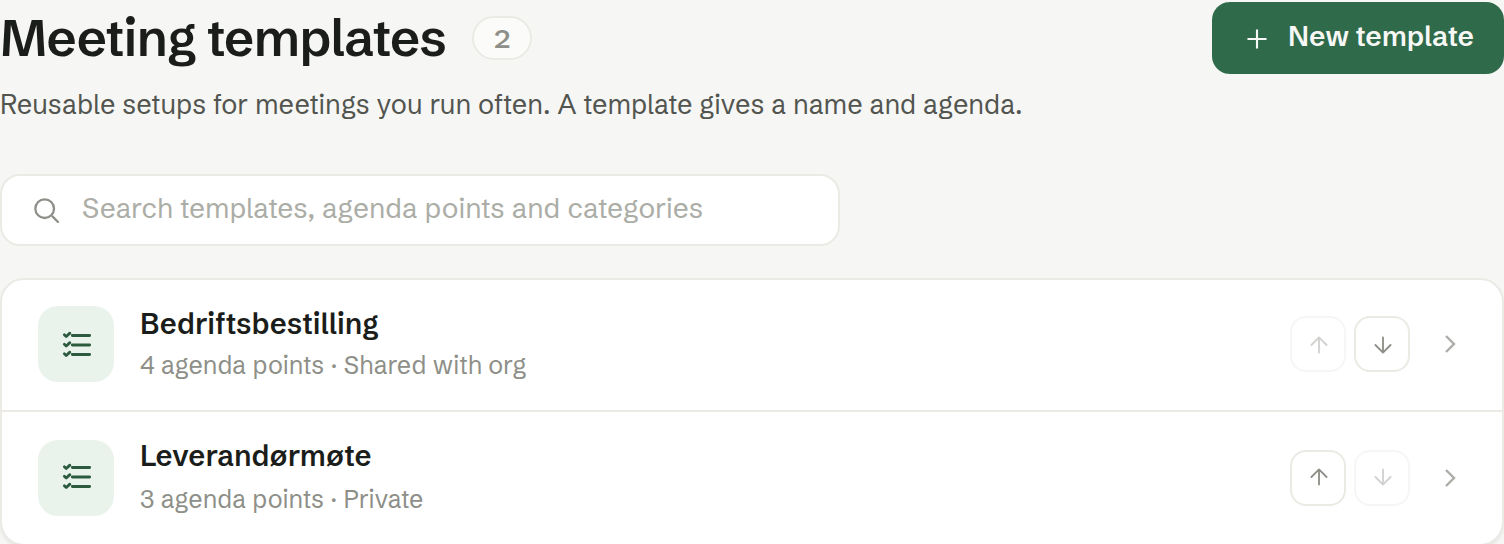
Once you use categories, templates are grouped under them, and those without one under Uncategorised. Each row says Shared with org or Private. Search finds templates by name, agenda point or category. Use Move up and Move down to put a group in the order you want — on the templates you may change.
Creating a template
New template opens the form:
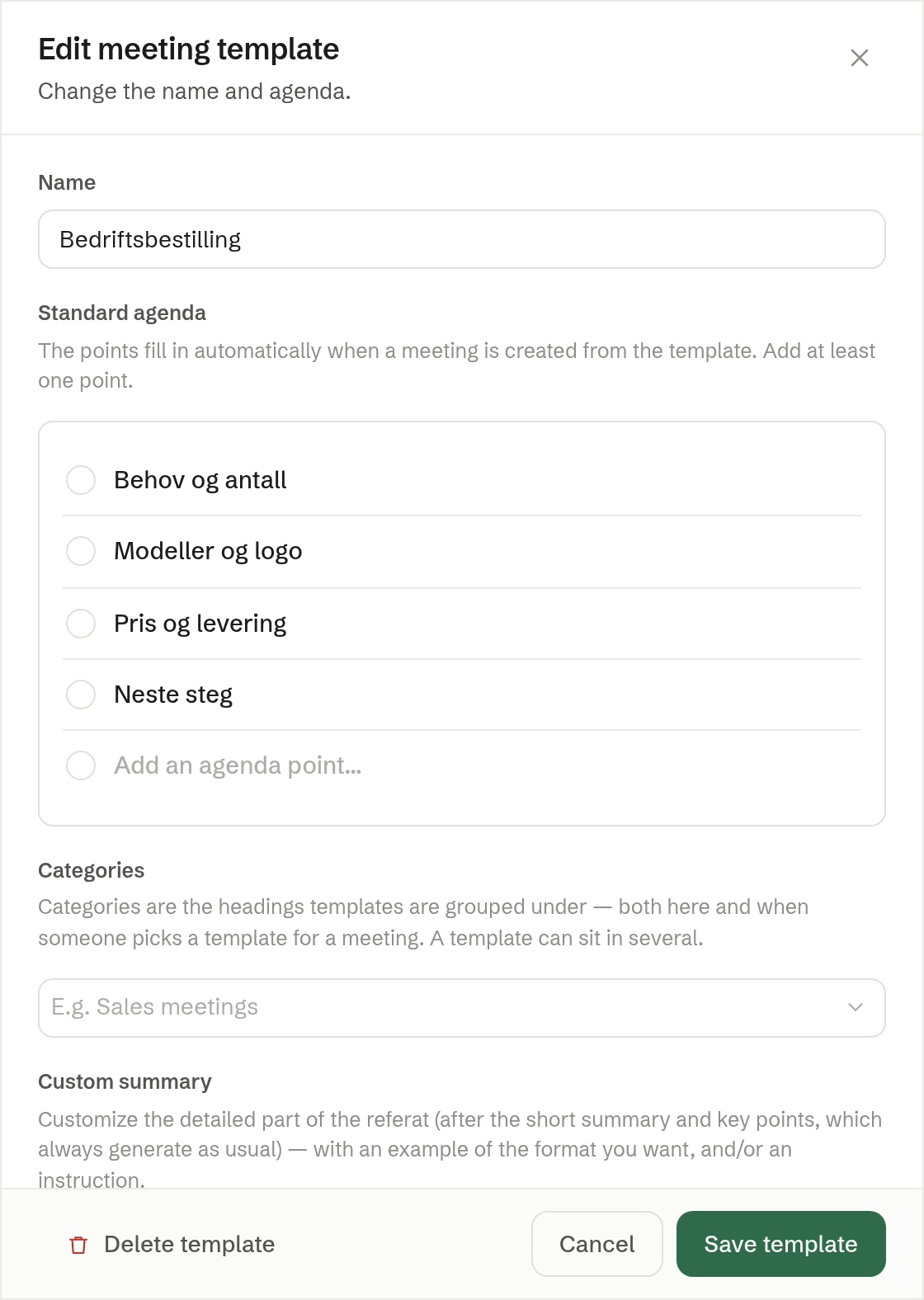
- Name — for example «Customer meeting – new offer».
- Standard agenda — the points a meeting gets when the template is used. At least one.
- Categories — the headings the template is listed under, here and when someone picks a template for a meeting. A template can be in several. Categories are your own; manage them from the field.
- Custom summary — optional. Under Example, paste a summary written the way you want them; under Instructions, describe it instead — for example «Focus on decisions». It changes the full summary only; the gist and key points are always written the usual way.
- Share with the organization — on by default: everyone in the workspace can use the template. Off, it is yours alone.
Save template saves it.
Using a template
- Before or during a meeting, Template on the agenda fills in the template's agenda. Picking a template also gives the meeting its custom summary, if it has one.
- After a meeting, Template on the summary card writes the summary again following that template.
- The agent can pick a template by itself when it prepares a meeting, if you allow it under Your meeting settings.
Who can change a shared template
A shared template is a standard for the whole workspace, so only the person who shared it can rename, edit, make private or delete it. Everyone else opens it read-only, can use it, and can Make a copy to get a personal template of their own to change.
Owners and administrators can change every shared template, including ones nobody owns any more. Admin
Make private takes a shared template out of the workspace and back to the person who shared it; nothing is deleted. Delete template removes it; meetings that already used it keep their agenda.