
The summary can reach the attendees in two ways: you send it from the meeting, or Brigg sends it by itself when the meeting ends.
Sending it yourself
Click Send email on the summary card. The dialog is filled in for you:
- To — every attendee with an email address. Remove someone, or add another address.
- Subject — the meeting's title.
- Message — a short note of your own, optional. Write a draft lets the agent write one from the meeting.
- Include the minutes — on by default: the summary goes under your message.
- Attachments — add a file From documents or Upload one.
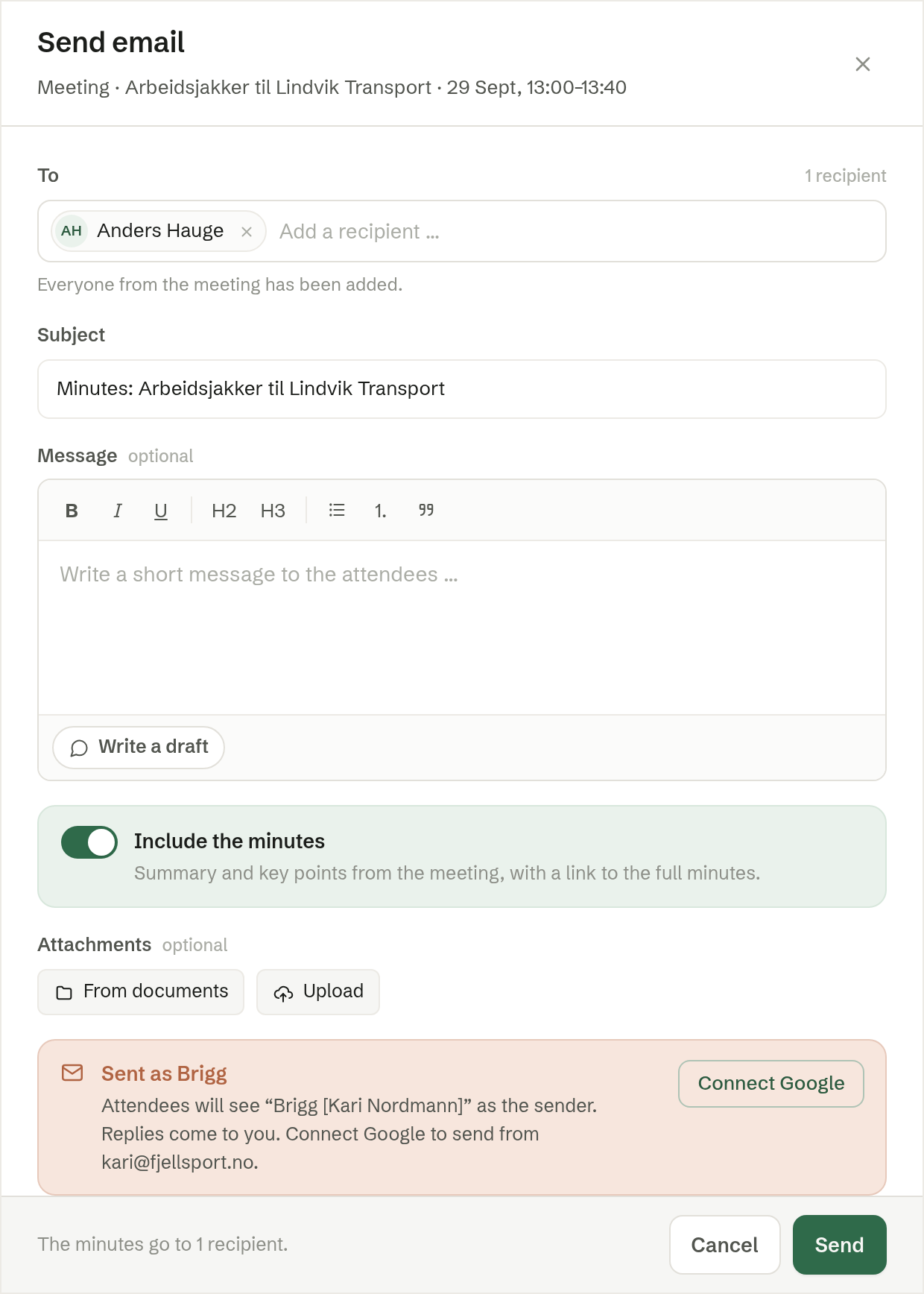
At the bottom, Sent as Brigg shows how the email leaves: the attendees see «Brigg» with your name as the sender, and replies come to you. To send from your own address instead, connect your Google or Microsoft email — the button in the box does it — and choose it under Send from.
Send sends one email to each recipient — nobody sees the others' addresses. Each person gets the summary, the tasks given to them, and a link to the meeting.
Sent automatically
Under Your meeting settings, Who gets the summary automatically decides who Brigg sends the summary to when one of your meetings ends:
- Nobody (the default) — nothing goes out by itself; you send it from the meeting when you want to.
- Every attendee — everyone in the meeting, external attendees included.
- External only — only attendees from outside the company.
- Colleagues only — only your colleagues in the workspace; nothing reaches the other side of the table.
Email me a summary after meetings (on by default) sends you your own copy, whatever you chose above.
The automatic email is sent once, when the meeting ends — not again when you edit or regenerate the summary.
What the recipients get
The automatic email is sent in your name, from your agent's own address — see The agent's email address. Colleagues get a link that opens the meeting in Brigg. External attendees get a link to a page with the summary and suggested follow-ups — they do not need a Brigg account to read it.