
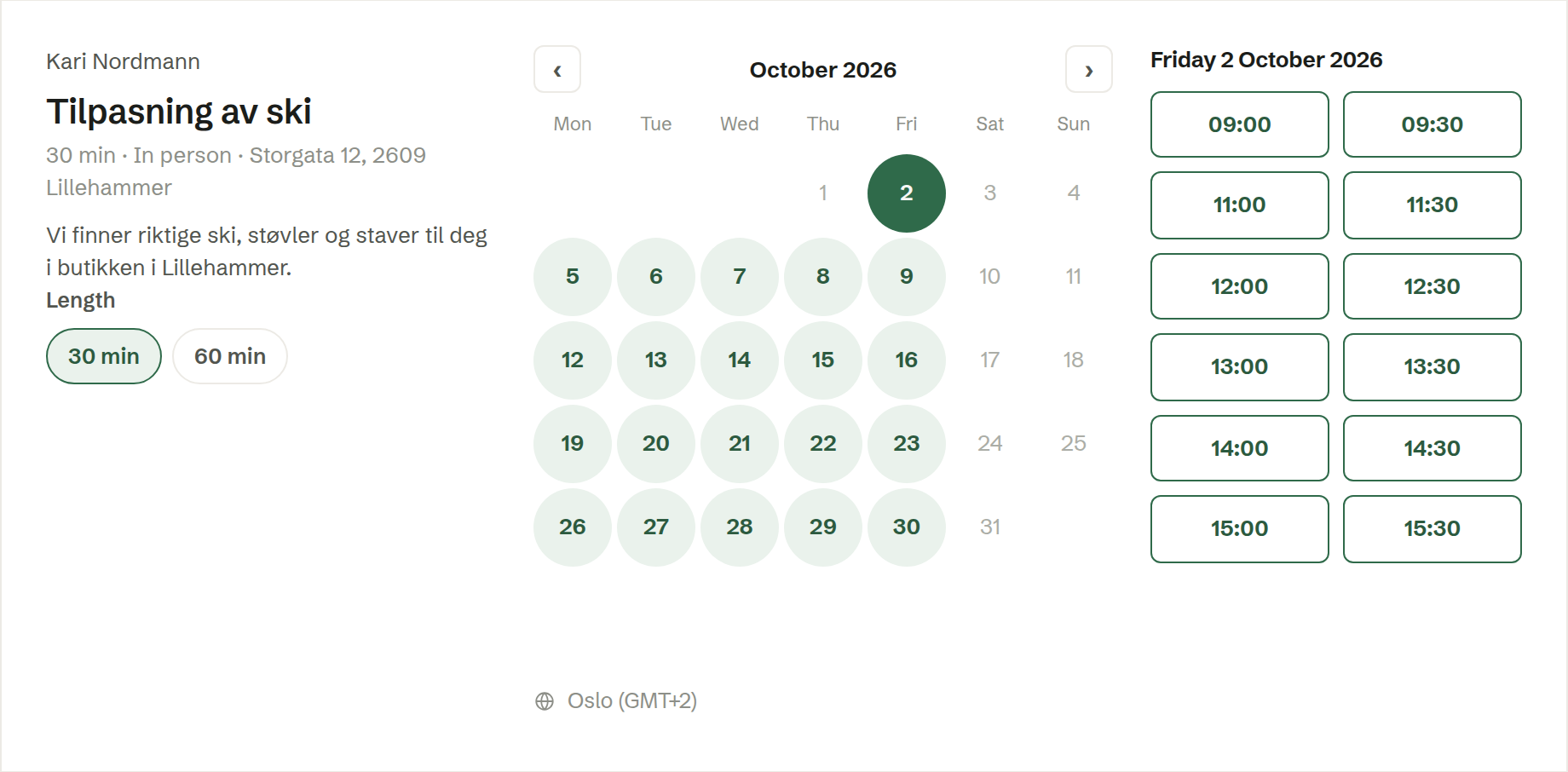
The booking page is what opens from your link. It needs no account and no sign-in. It shows your company's name and icon, your name, the link's name and description, the length and the meeting type.
Booking
- If the link offers several lengths, choose one under Length.
- Pick a day in the calendar — days with free times are marked — then a time.
- Fill in Name and Email, and Phone if you ask for it. What is the meeting about? and your own questions come after.
- Confirm booking.
Times are shown in the visitor's own time zone; Time zone at the bottom changes it. The page is in Norwegian, Swedish, Danish or English, following the visitor's browser, and can be switched at the top.
After booking
The person who booked gets an email confirmation and a calendar invitation — with the video link for a video call. You get an email about the new booking, the meeting is in your calendar, and it shows up under Upcoming in Meetings.
The confirmation has a link to Reschedule or cancel the meeting: Pick a new time moves it, and Cancel meeting cancels it. Both of you are told by email either way.