
Click a company in the company list to open its page.
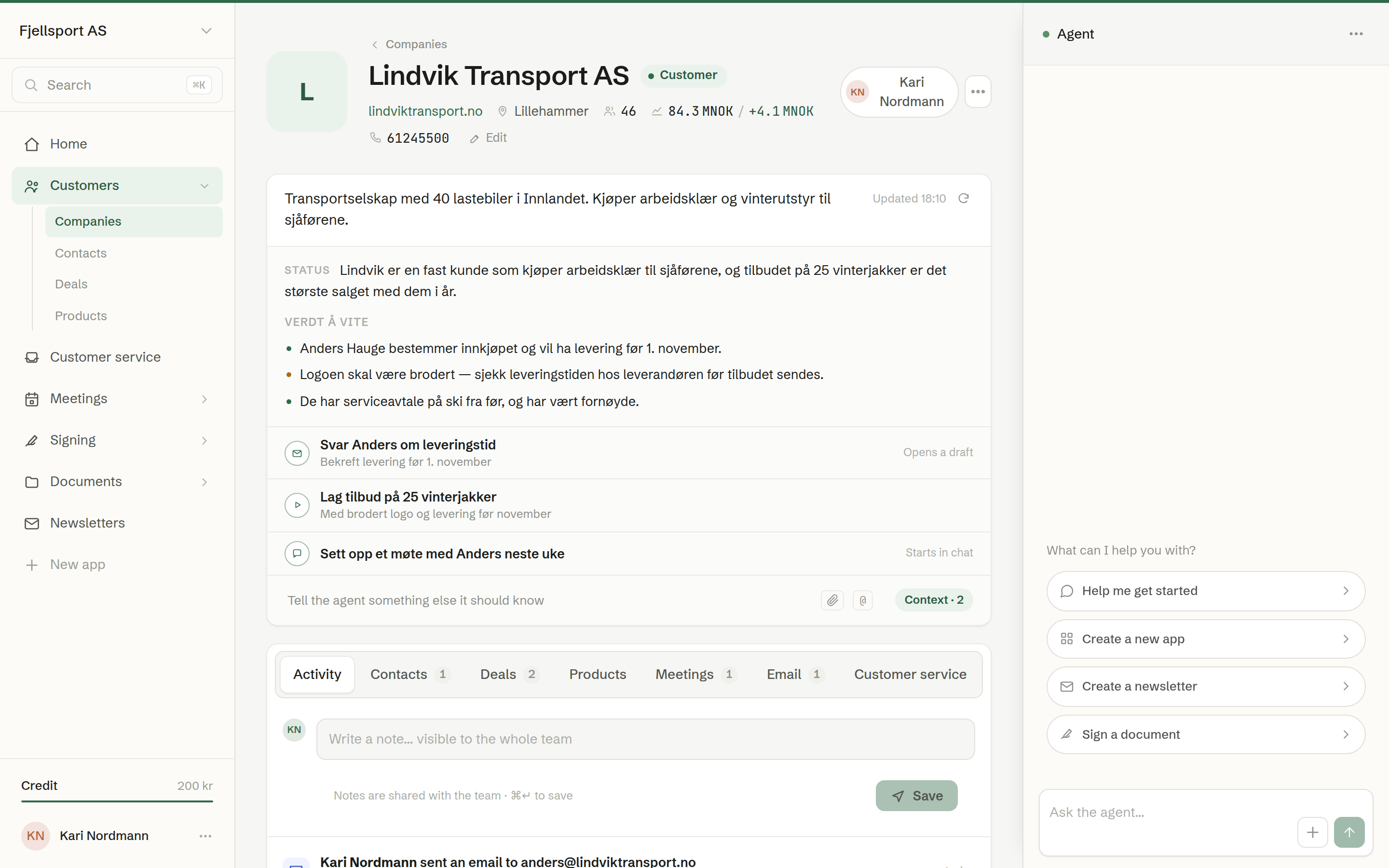
The header
- Logo and name, with a Customer label when the company has the tag Customer.
- The fact line under the name: website, city, number of employees and the latest revenue / net result. A fact that is missing and worth having — website and phone — shows as + Website or + Phone; click it, type, and press Enter.
- Edit opens all the fields. See Editing a company or a contact.
- Owner (top right) — the colleague responsible. Click to change.
- ⋯ — more actions, such as Delete.
Key figures from the register
Only in Norway
For a Norwegian company with an organisation number, the fact line shows the number of employees, the head office and the latest filed revenue and net result, read live from the Brønnøysund Register Centre. Hover over the figures to see which year they are from. If the company is bankrupt, being wound up or removed from the register, a red warning says so.
The status card
Under the header is one card: the company's description (click it to edit), the agent's status on the customer, and its suggested next steps. See The agent's brief.
The tabs
- Activity — everything that has happened, newest first, and a box for notes. See Activity and notes.
- Contacts — the people at the company. + New contact adds one.
- Deals — the company's deals and their stage. + Add new starts a new one; New quote on a row makes a quote from that deal. See Deals.
- Products — what the customer has bought or subscribes to. See Products and line items.
- Meetings — meetings with people from the company, found from the attendees' email addresses.
- Email — emails Brigg has sent the company's people. See Email on a customer.
- Customer service — the company's conversations in Customer service.
- Tasks — open and done tasks on the customer. See Tasks on a customer.
- Documents — documents attached to the customer, sent to them or signed by them. See Documents on a customer.
A number on a tab is how many items it holds. If the workspace has an accounting system connected, a company it has invoiced also gets an Invoices tab.
Your own company
Your own company has a page too, marked «You work here!». It has no brief and no customer tabs such as Deals or Products — the workspace is not its own customer — but its Contacts tab lists your colleagues.