
Import on the company list and the contact list brings existing customers into Brigg. Choose where the data comes from.
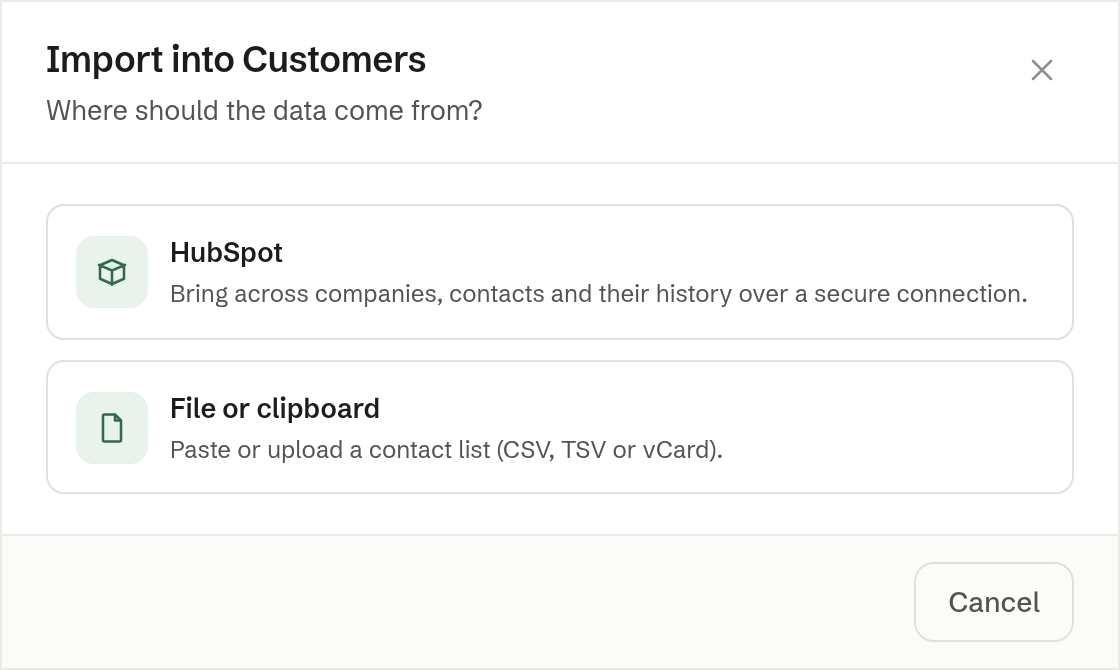
From a file or the clipboard
File or clipboard imports a contact list.
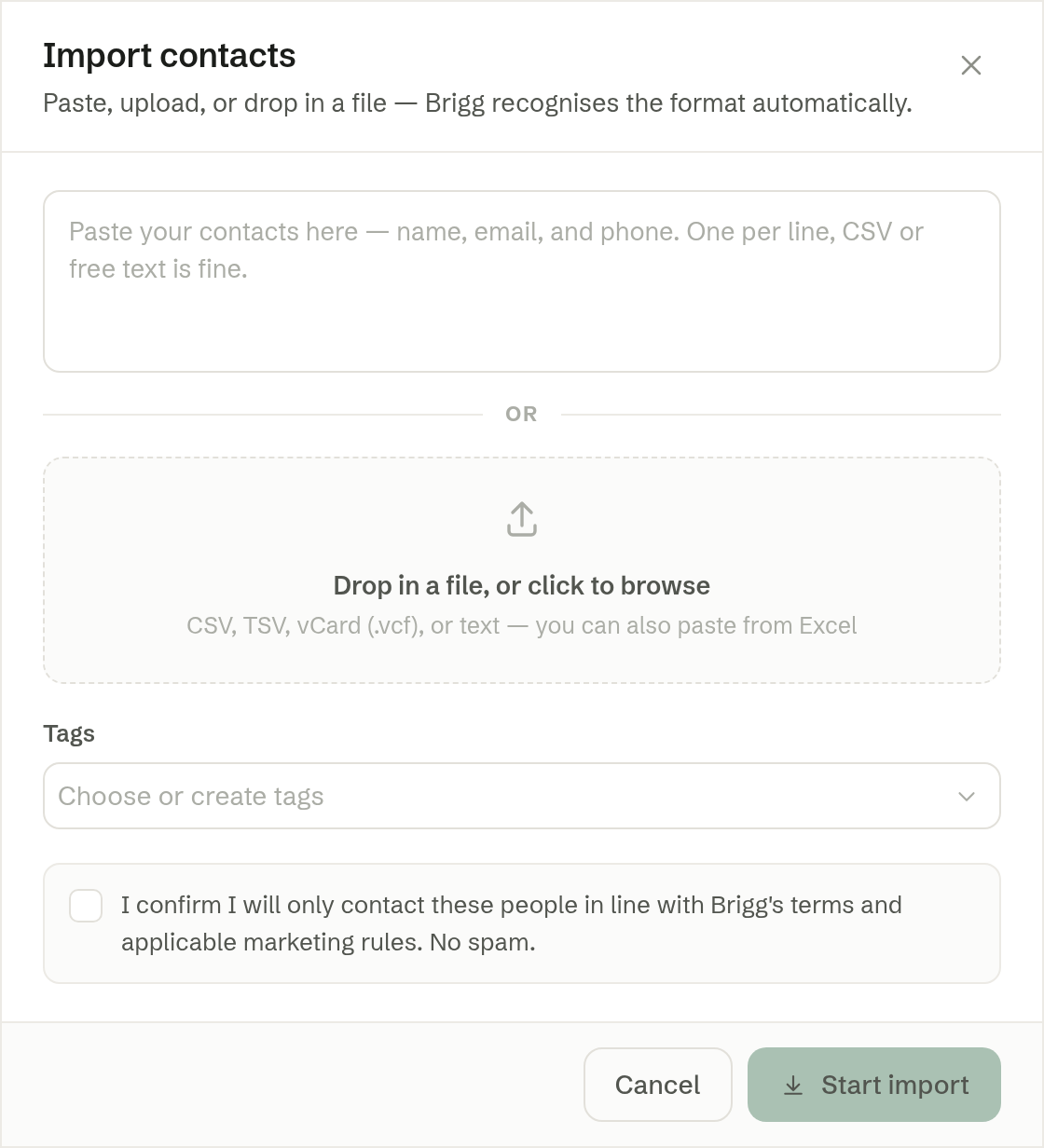
- Paste the contacts into the box — name, email and phone, one per line — or drop in a file: CSV, TSV, vCard (.vcf) or plain text. You can paste straight from Excel. Brigg works out the columns by itself.
- Tags — optionally, tags to put on every imported contact, so you can find them again or send them a newsletter.
- Tick the box confirming you will only contact these people in line with Brigg's terms and the marketing rules.
- Click Start import.
The result shows the New contacts, those Updated, Duplicates merged and Invalid skipped rows. A contact who is already in Customers is updated, not duplicated.
Every member can import from a file.
From HubSpot
Admin
HubSpot brings across your whole CRM: companies, contacts and their history.
- Choose HubSpot. You are taken to HubSpot to sign in and give Brigg read access.
- Back in Brigg, you see what will be imported, with real numbers and examples. Companies, contacts, and notes and activities always come along; Deals and Tasks (open only) are your choice.
- Click Start import. You can close the window — the import keeps running in the background.
When it is done, the window shows what was brought across and what is worth knowing about your data — for example amounts in a foreign currency, which are left out. What stays in HubSpot lists what is not imported, such as tickets, attachments and lists.
Good to know:
- Nothing is ever written back to HubSpot.
- A record that already exists in Brigg is filled in, never overwritten.
- Calls, meetings and emails from HubSpot become notes, dated when they happened.
- HubSpot's deal stages are matched to your own sales stages.
- Disconnect removes the connection to HubSpot. What was imported stays.