
Click a person in the contact list — or on a company's Contacts tab — to open their page.
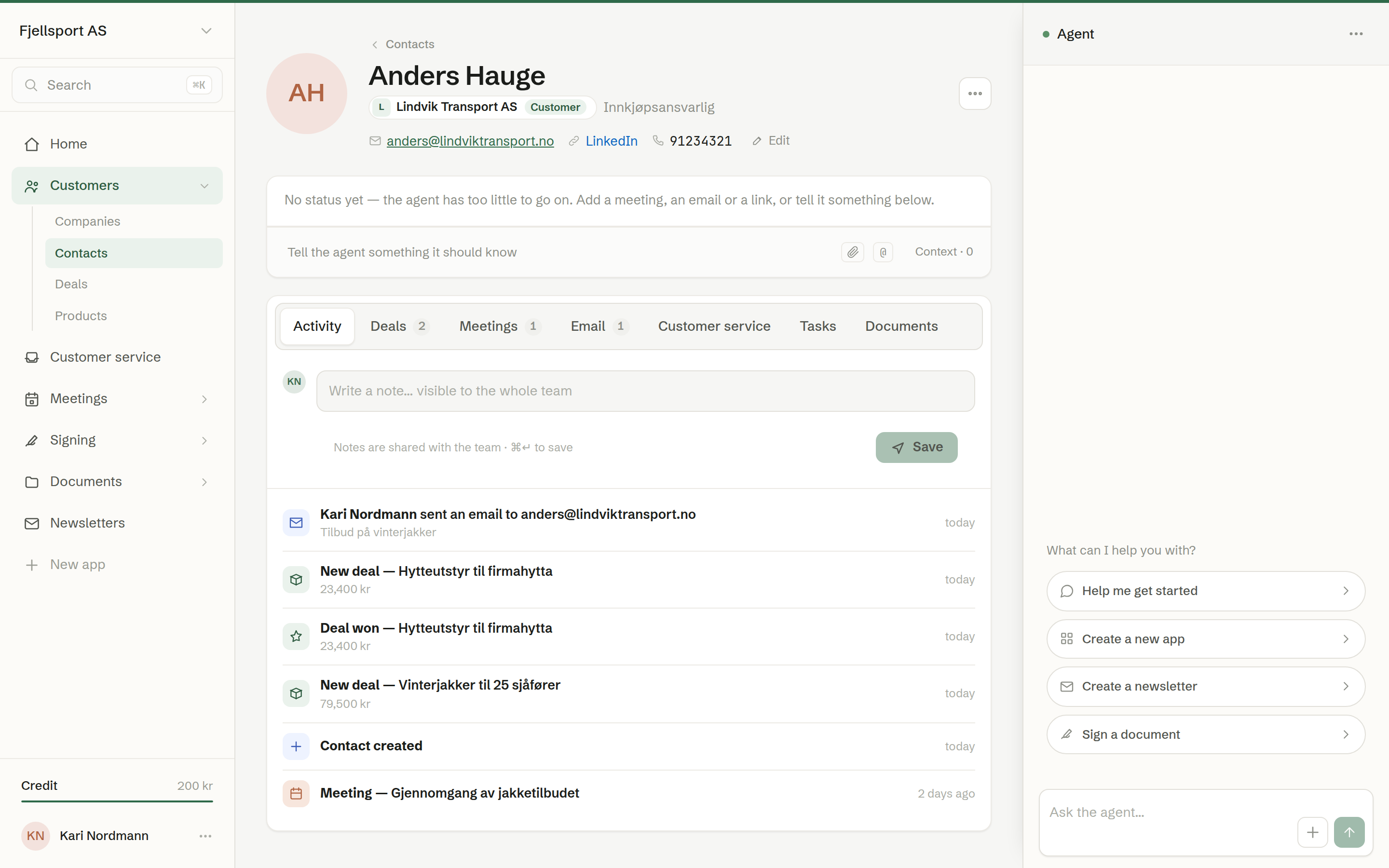
The header
- Photo and name, with their Title next to the company they work at. Click the company to open its page; the Customer label shows when the company is tagged as a customer.
- The fact line: email (click to write), LinkedIn and phone. Missing phone shows as + Phone; click it, type and press Enter.
- Edit opens all the fields. See Editing a company or a contact.
- ⋯ — more actions, such as Delete.
«Not … ?» on the photo
When the agent found the photo through a web search, it may be of someone else with the same name, so the photo carries a small Not …? badge. Click it to Upload photo with the right one, or Remove photo.
The status card
Under the header: the person's description, the agent's status on them and suggested next steps. See The agent's brief.
The tabs
- Activity — notes, meetings, emails, deals and tasks in one timeline. See Activity and notes.
- Deals — deals where this person is the contact.
- Meetings — meetings they attended.
- Email — emails Brigg has sent them. See Email on a customer.
- Customer service — their conversations in Customer service.
- Tasks — tasks on this person. A task here also shows on their company. See Tasks on a customer.
- Documents — documents attached to them, sent to them or signed by them. See Documents on a customer.
Your own contact card
Every member has a contact card of their own, marked «This is you!». It is created when you join the workspace, and holds no brief and no customer tabs.