
Click Edit on a company or contact page to open all its fields. Change what you need and save. Every member can edit every company and contact.
A company's fields
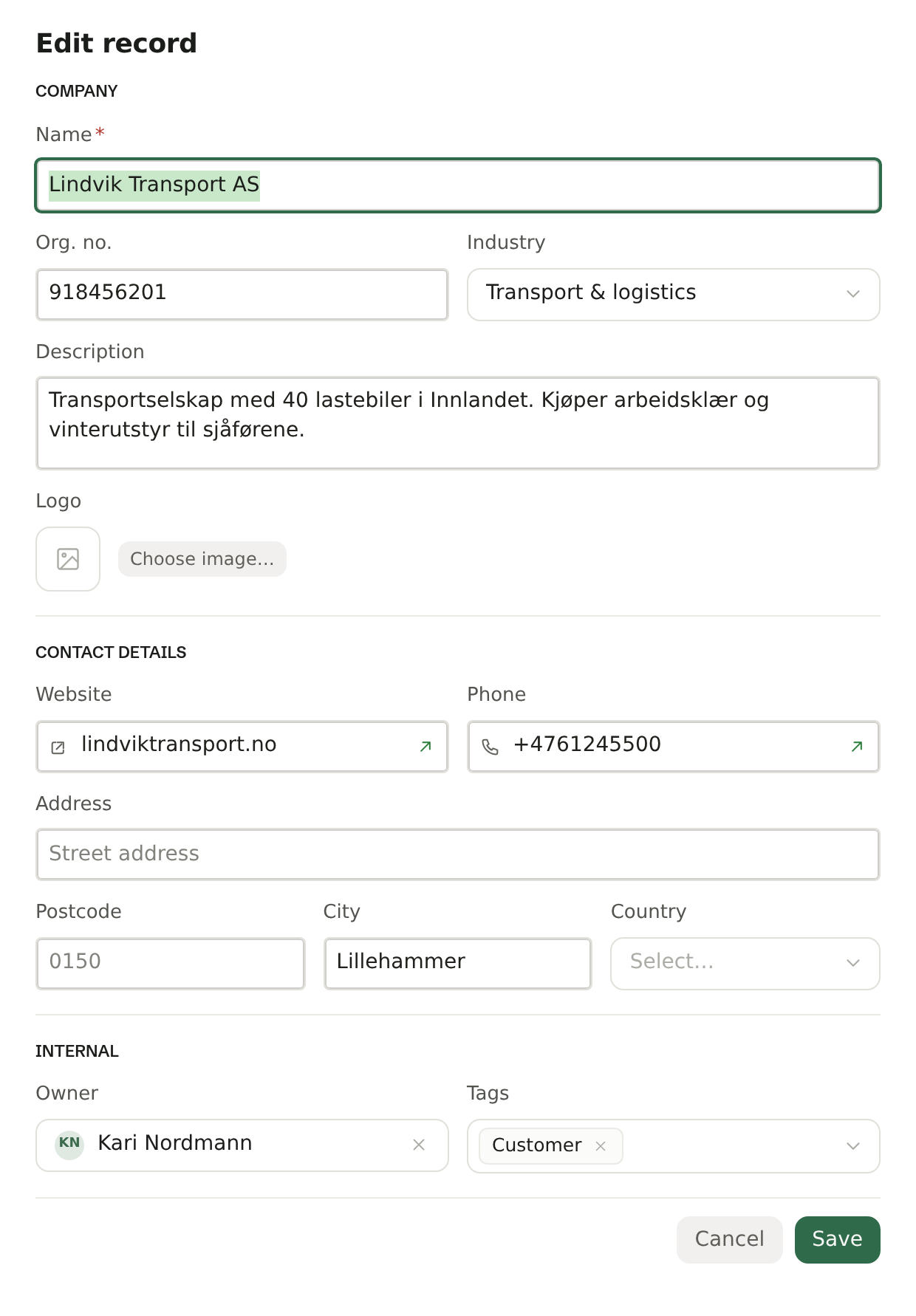
The fields come in three groups.
Company — who they are:
- Name — the company's name. Required.
- Org. no. — the organisation number: 9 digits in Norway, 10 in Sweden. Brigg checks that the number is valid. With it, the company page shows key figures from the register.
- Industry — pick from the list.
- Description — a sentence or two about the company. It is the top of the status card, and the agent reads it.
- Logo — upload a picture. Brigg fetches one from the website if you leave it empty.
Contact details — how to reach them:
- Website and Phone.
- Address, Postcode, City and Country — the postal address.
Internal — what the customer is to you:
- Owner — the colleague responsible for the customer.
- Tags — labels for sorting the list, such as Customer. The Customer tag puts the Customer label beside the name. Type to pick an existing tag or create a new one. The same tags are used for newsletter audiences.
A contact's fields
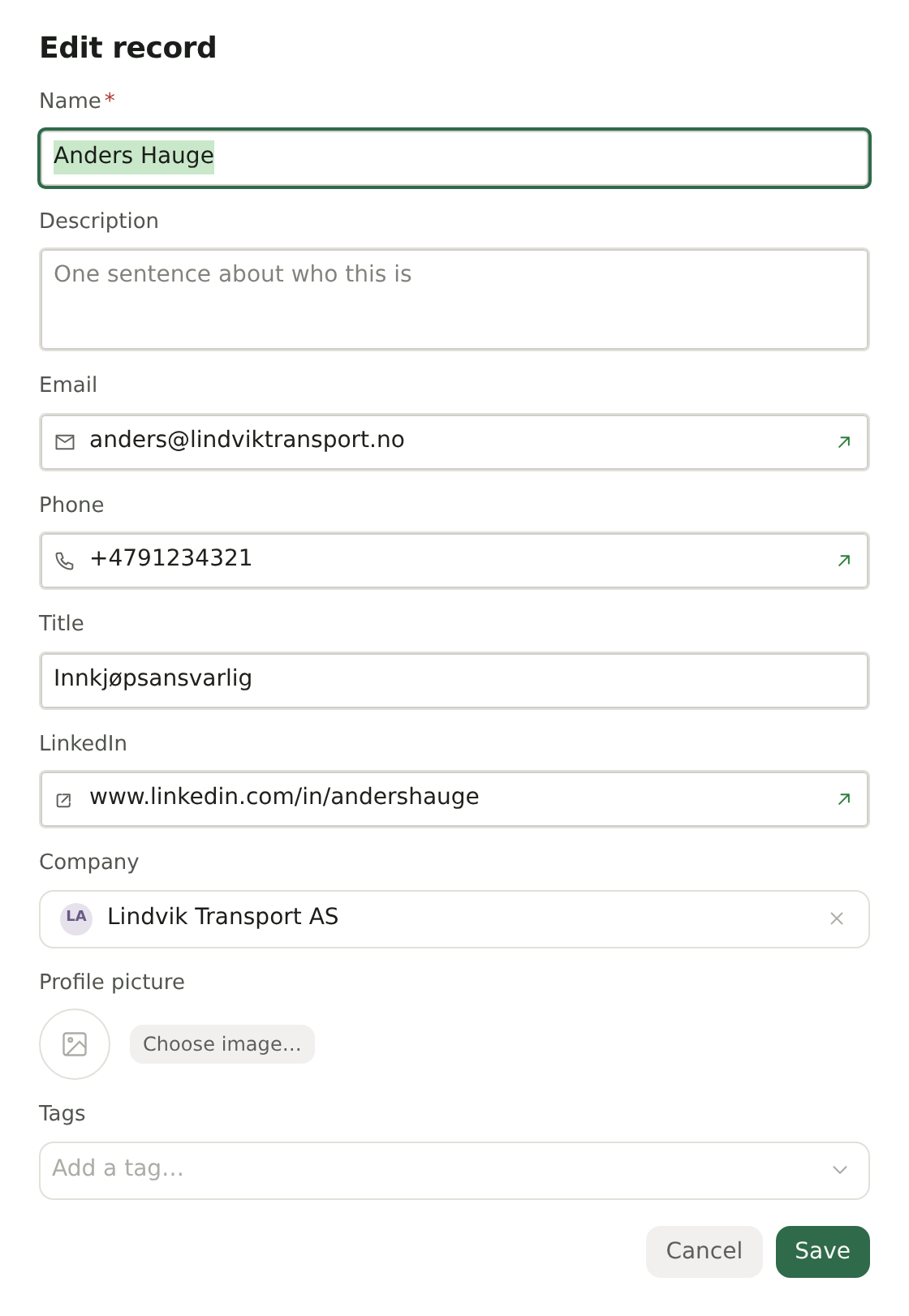
- Name — required.
- Description — one sentence about who this is.
- Email, Phone and LinkedIn.
- Title — their job title.
- Company — where they work. Pick a company in Customers, or create a new one from the field.
- Profile picture — upload a photo.
- Tags — labels for sorting and newsletter audiences.
What you write is kept
Brigg and the agent only fill in fields that are empty. Whatever a person has typed stays as it is. See What Brigg fills in for you.
Deleting
Open ⋯ at the top of the page and choose Delete. A deleted company or contact disappears for everyone in the workspace. If it was a mistake, ask the agent to restore it — deleted records can be brought back for 30 days.